Shoppable Social Feed & Reels is a high-converting marketing and sales optimization plugin that turns your Instagram posts and reels into an interactive, shoppable gallery on your WooCommerce store. Customers can browse your social media content directly on your site, view tagged products in a modern TikTok/Reels-style lightbox, and add items directly to their shopping cart in a single click.
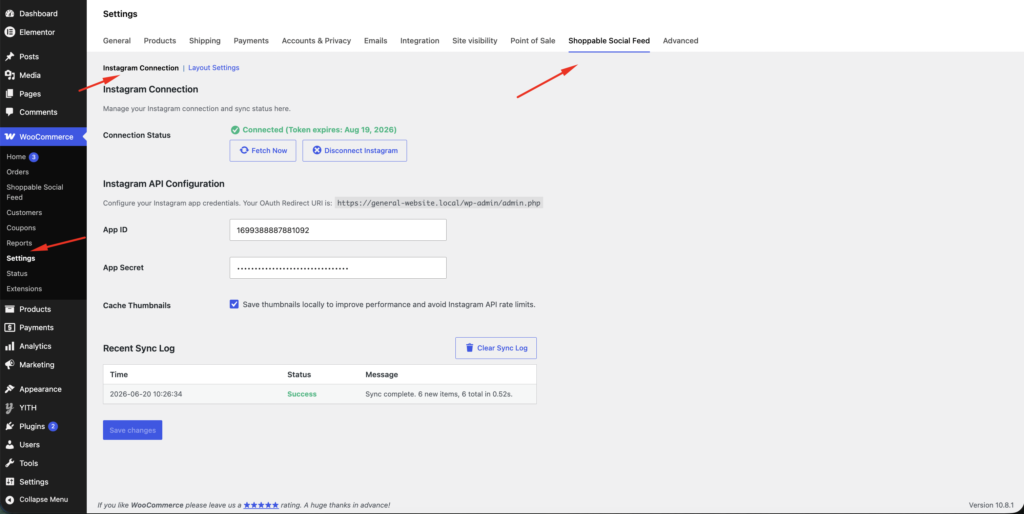
The connection settings dashboard (located under WooCommerce > Settings > Shoppable Social Feed > Instagram Connection) allows you to securely authenticate with Instagram’s API and manage feed synchronization.
Connection Status: Shows real-time connection status along with the token expiration date (e.g., Connected (Token expires: Aug 19, 2026)). Features quick actions to Fetch Now (trigger manual sync) and Disconnect Instagram.
OAuth Redirect URI: Displays the precise callback URL required for setting up your Instagram developer application (e.g., https://your-domain.local/wp-admin/admin.php).
App ID & App Secret: Secure inputs to authenticate your custom Instagram Graph API App.
Cache Thumbnails: Checkbox to save media thumbnails locally on your web server.
TIP
Enabling thumbnail caching significantly improves page load speeds and prevents your store from hitting Instagram API rate limits.
Recent Sync Log: Shows a history of recent synchronization tasks, including execution timestamps, status (Success/Error), and detailed messages (e.g., Sync complete. 6 new items, 6 total in 0.52s.). You can easily flush logs using the Clear Sync Log button.
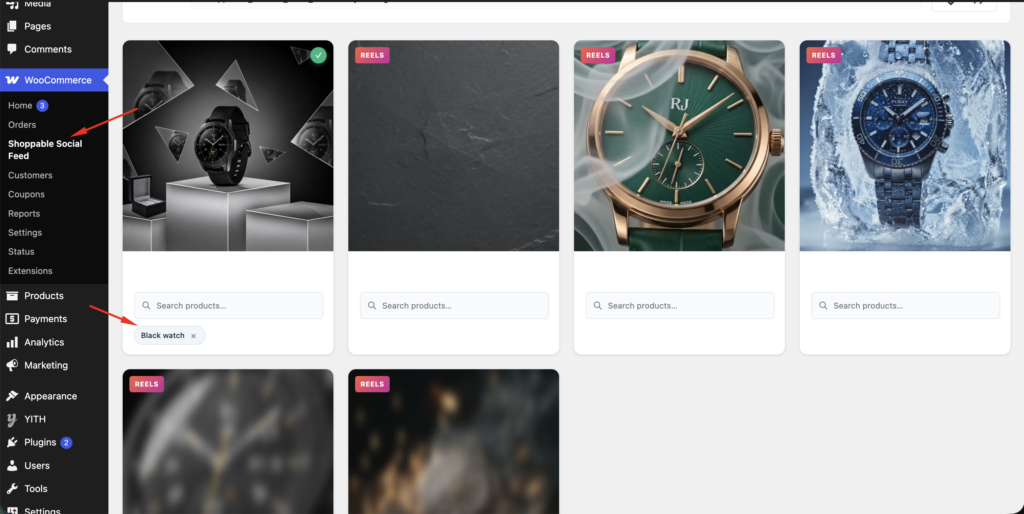
Located under WooCommerce > Shoppable Social Feed, the Catalog Editor is a visual workspace designed for store managers to link WooCommerce products directly to synced Instagram items.
Visual Grid Layout: Displays your synced Instagram posts and video reels in a responsive card format.
Content Badges: Automatically adds a REELS badge in the top-left corner of video posts so managers can easily identify video-based social media assets.
Mapping Status Indicator: Cards with successfully mapped products display a green checkmark (✓) in the top-right corner, making it easy to identify which assets are already shoppable.
Autocomplete Search & Tagging: Each card contains an inline Search products… input. Simply start typing to retrieve and select WooCommerce products. Linked products are shown as tag chips underneath the search input (e.g., Black watch ✕), allowing you to assign multiple products per post or easily delete them.
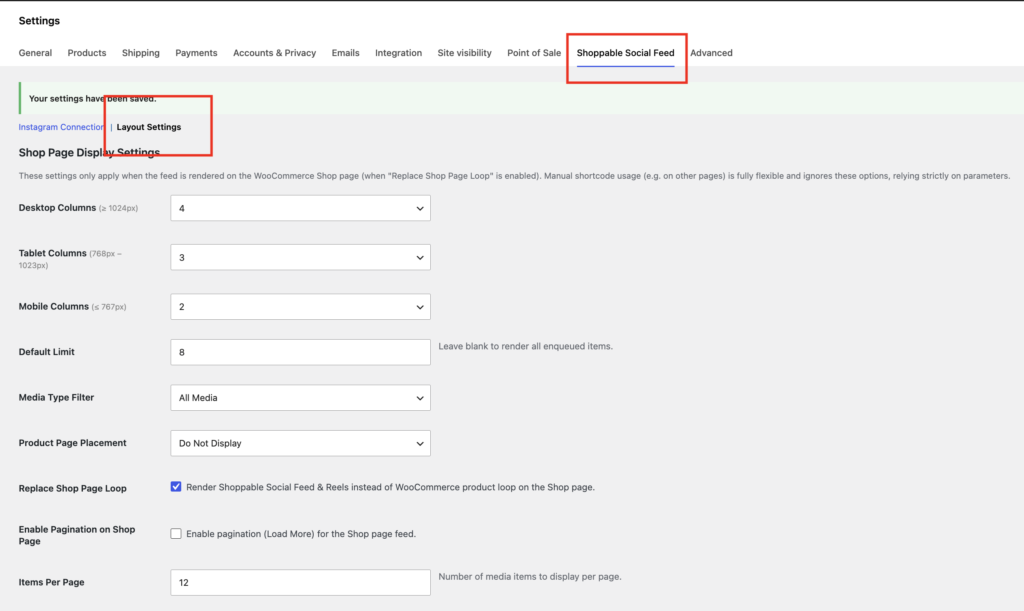
The configuration tab (located under WooCommerce > Settings > Shoppable Social Feed > Layout Settings) controls how the social feed displays across the different pages of your WooCommerce site.
Set the number of grid columns on desktop viewports ($\ge 1024\text{px}$). Default is 4.
Tablet Columns
Dropdown
Set the number of grid columns on tablet viewports ($768\text{px} – 1023\text{px}$). Default is 3.
Mobile Columns
Dropdown
Set the number of grid columns on mobile viewports ($\le 767\text{px}$). Default is 2.
Default Limit
Number
Maximum number of social feed items to display globally (leave blank to display all).
Media Type Filter
Dropdown
Filter displayed content by type: All Media, Reels Only, or Posts Only.
Product Page Placement
Dropdown
Automatically display relevant Instagram items on single product pages. Options include: Do Not Display, Before Title, After Title, After Summary, Gallery Thumbnails, or Custom Product Tab.
Replace Shop Page Loop
Checkbox
Replace the default WooCommerce products grid on the Shop page with the shoppable Instagram feed.
Enable Pagination
Checkbox
Enable a “Load More” pagination button to dynamically load more media on the Shop page.
Items Per Page
Number
The number of media items to load initially and per page click (e.g., 12).
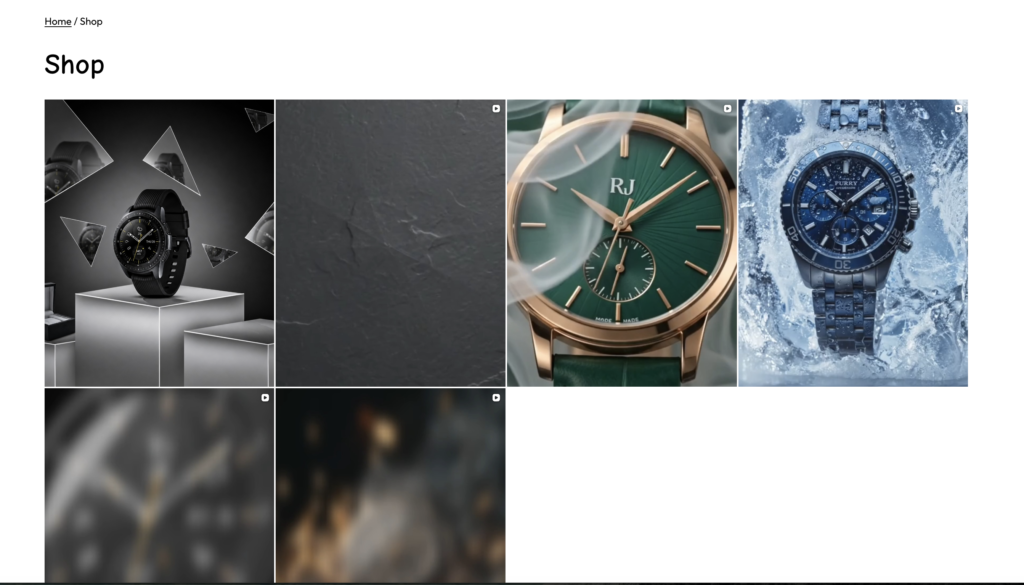
When the Replace Shop Page Loop setting is active, the plugin replaces the standard WooCommerce loop with a clean, fully responsive grid matching your column settings. Reels/videos feature a small play icon overlay in the top-right corner to indicate playable media.
B. Interactive Lightbox Modal (Click-to-Shop Overlay) #
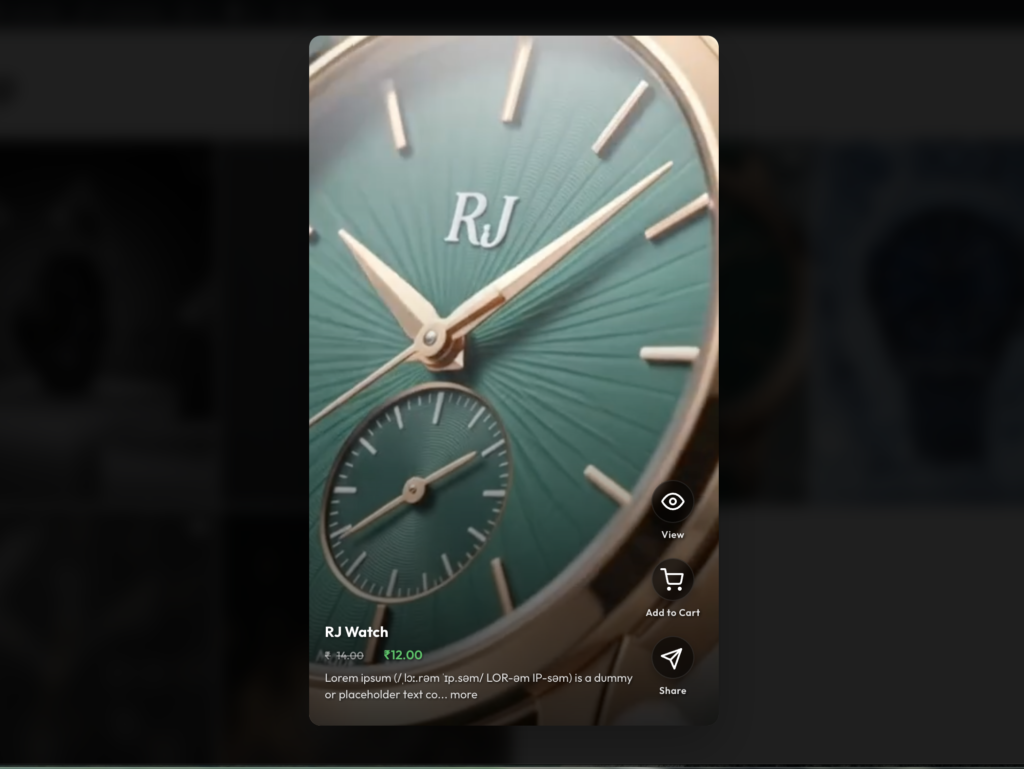
Clicking on any social card opens a modern, dark-mode, distraction-free vertical lightbox modal designed to drive instant purchasing decisions:
Scroll & Shop (Swipe & Keyboard Navigation): Customers can scroll or swipe vertically (or use the up/down arrow keys on desktop) to browse through other posts and reels in the feed directly within the active modal. The lightbox modal automatically loads the next sets of items seamlessly, creating an uninterrupted shopping loop.
Vertical Media Showcase: Focuses the user’s attention on the social image or reel.
Product Information Card: Overlaid directly at the bottom-left of the media:
Product Title: (e.g., RJ Watch)
Live Price Display: Displays the original price (crossed out) and active sales price highlighted in green (e.g., ₹ 14.00₹ 12.00).
Short Description: A toggleable description preview text with a “more” link.
Quick Action Menu (Vertical Bar on the Right):
View (Eye Icon): Click to navigate directly to the detailed product page.
Add to Cart (Shopping Cart Icon): Performs an instantaneous AJAX Add-to-Cart action, adding the product directly to the customer’s cart without leaving the lightbox overlay.
Share (Paper Airplane Icon): Opens standard sharing tools to share the mapped post.



Leave a Reply