
Offline Submission for Gravity Forms — User Guide #
Safeguard visitor form entries against network drops, spotty connections, and accidental disconnects.
Step-by-Step Setup Guide #
Open Form Offline Settings #
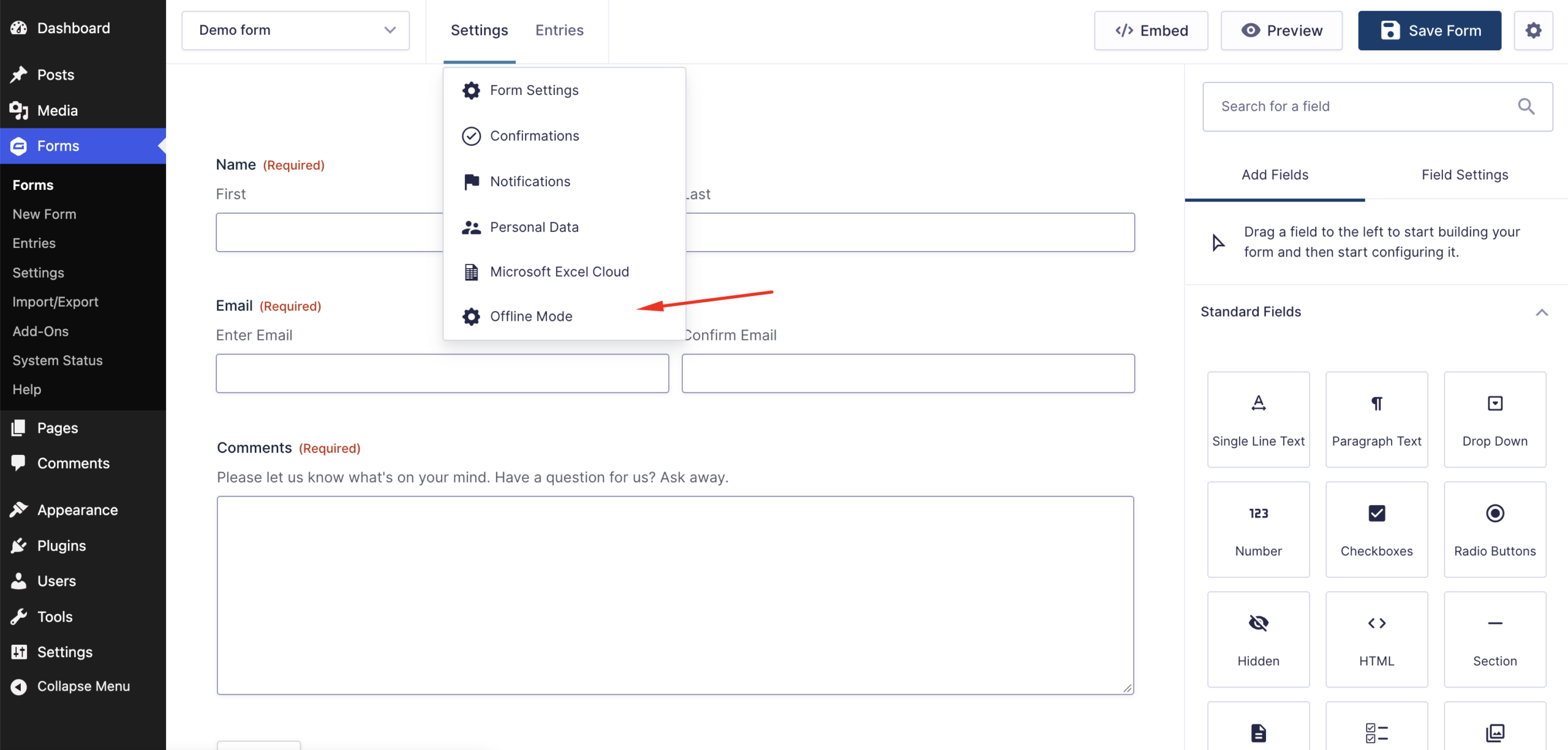
Navigate to Forms → Forms in your WordPress admin, hover over your target form, click Edit, and select Settings → Offline Mode from the top navigation bar.
Configure Offline Options #
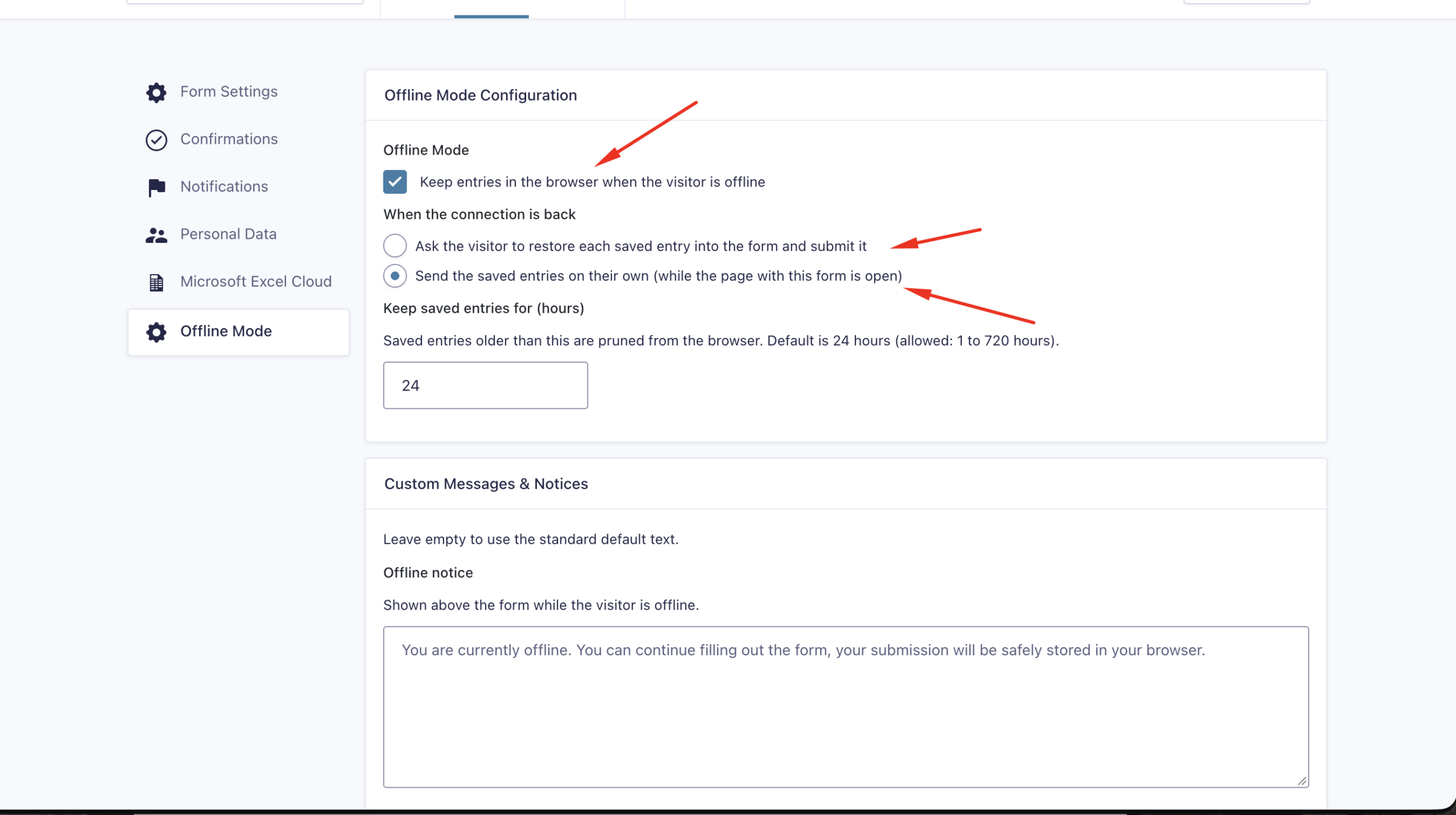
Check the box for “Keep entries in the browser when the visitor is offline” to activate protection, then pick your preferred synchronization mode:
Auto-Send (Recommended) #
Transmits entries automatically in the background once the visitor is back online, without requiring any clicks.
Ask Mode #
Displays a prompt upon reconnection with Restore and Discard buttons to let visitors review their saved answers first.
What Visitors See When Offline #
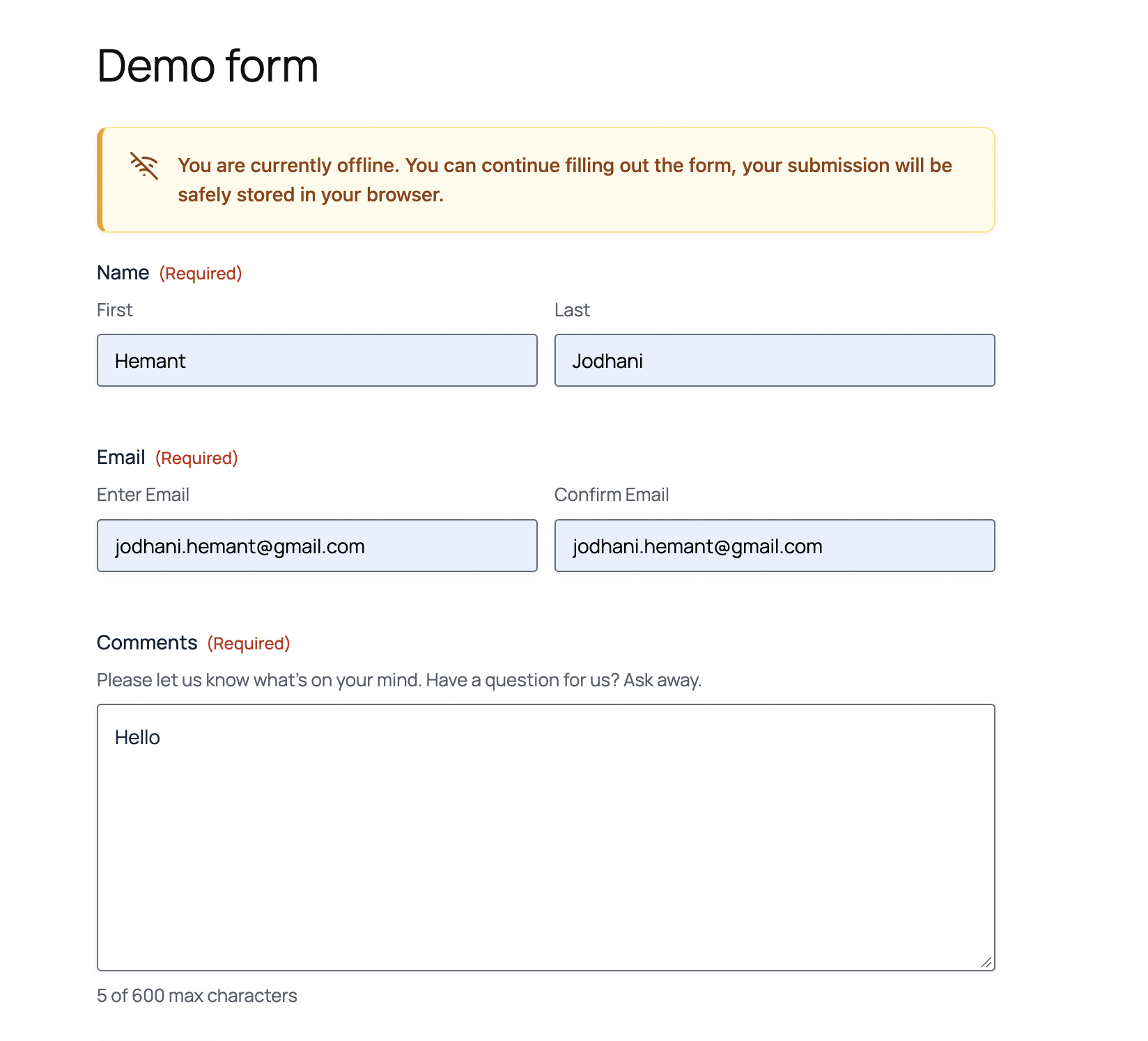
If internet cuts out while a visitor is completing the form, an alert banner appears reassuring them that they can continue filling it out safely.
Reconnection & Delivery Confirmation #
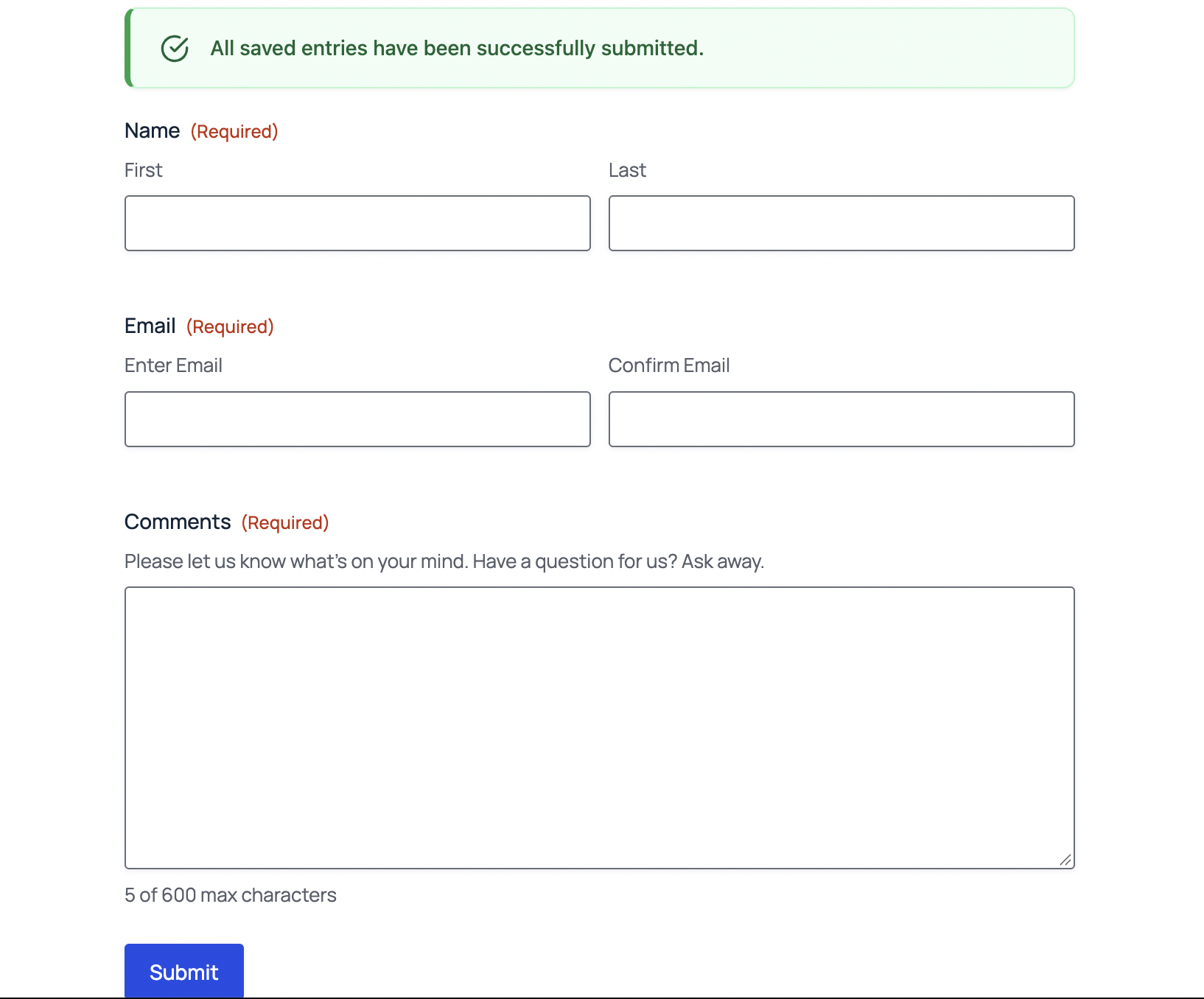
As soon as the connection returns, stored submissions are securely delivered to your WordPress backend, and a green confirmation banner appears.
Built-In Safety & Privacy #
Sensitive Fields Excluded #
Credit card details, passwords, and file uploads are never saved locally on visitor devices.
Duplicate Prevention #
Each entry submits only once, even if opened across multiple browser tabs or refreshed.
Full Notification Support #
Standard Gravity Forms emails, notifications, and add-on feeds run normally upon sync.
Frequently Asked Questions #
Can I enable offline protection on specific forms only?
Yes. Offline mode is configured on a per-form basis under Form Settings, so you only activate it where needed.
What happens if a visitor closes their browser before reconnecting?
Their answers remain stored on their device for your configured retention period (default 24 hours) and will sync when they reopen the form online.
Where do I enter my premium license?
Navigate to Forms → Offline Mode → Account in your WordPress admin menu to enter and activate your key.


Leave a Reply