
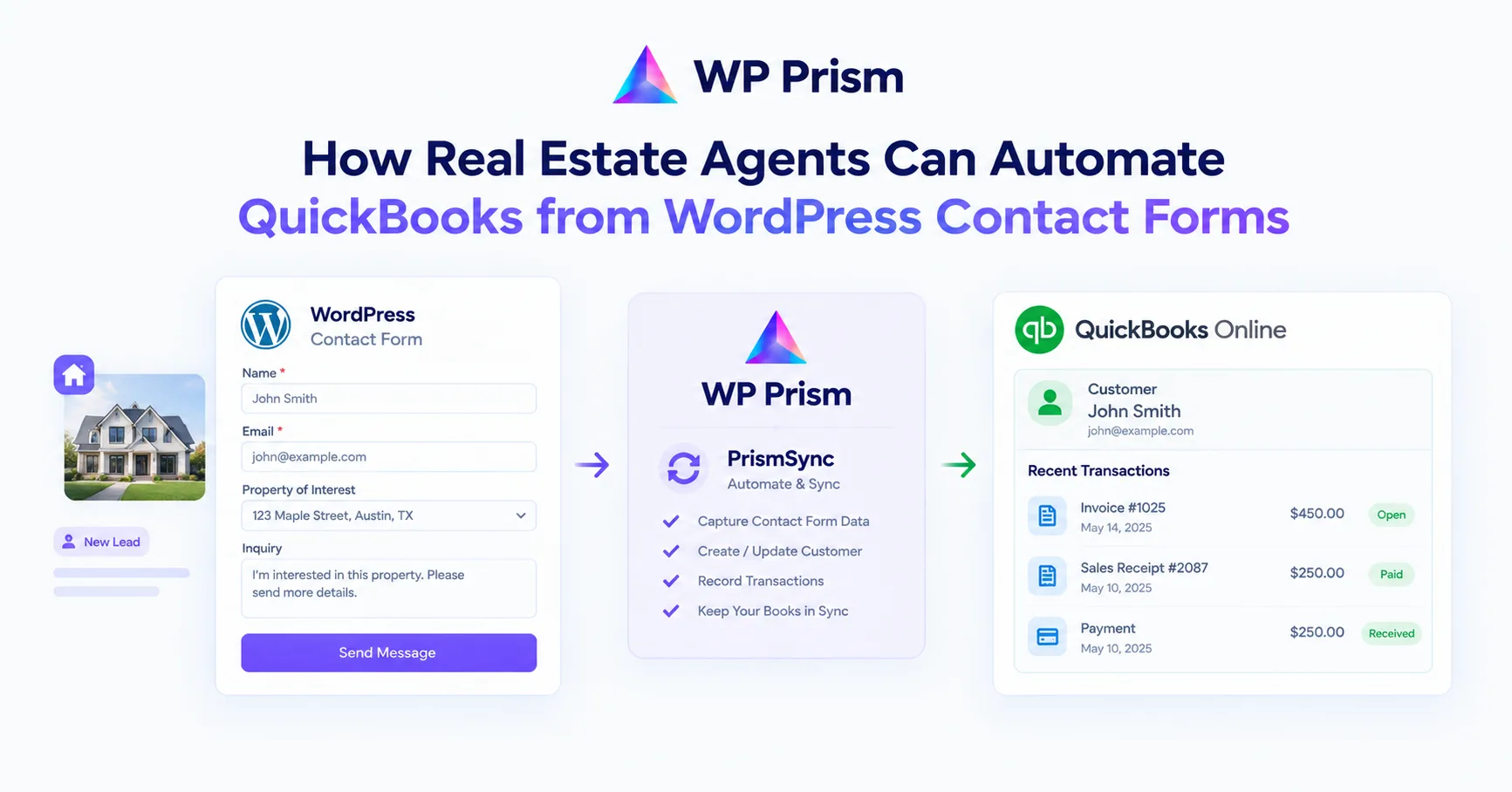
Real estate is a paper heavy business even when it’s run digitally. Enquiry comes in through the website, gets entered into a CRM, then the relevant details get manually copied into QuickBooks to create a client record, an invoice, or a receipt. Every one of those manual steps is a chance for something to be entered incorrectly, or not entered at all.
If your WordPress site is already using Gravity Forms to collect property enquiries, viewing requests, or deposit details, PrismSync can close the gap between your forms and QuickBooks automatically. Here’s how it works for the most common real estate workflows.
The Double Entry Problem in Real Estate
A typical sequence for a real estate agent handling an enquiry looks like this:
- Potential client fills in a contact or viewing request form on the website
- Agent receives the notification email and manually creates a contact in their CRM or QuickBooks
- After the viewing or agreement, the agent manually creates a QuickBooks invoice for the commission or service fee
- When deposit or payment is received, the agent manually records the payment in QuickBooks
Steps 2, 3, and 4 all involve copying data that was already captured in step 1. PrismSync automates steps 2 and 3 immediately, and can handle step 4 through a separate payment confirmation form.
Workflow 1: Property Viewing Request Creates a QuickBooks Customer and Invoice
When a potential client requests a property viewing through your website, that’s the moment their details enter your system. With PrismSync, it’s also the moment they appear in QuickBooks.
The form fields you need:
- Full Name
- Email Address
- Phone Number
- Property Address or Reference (the property they’re enquiring about)
- Preferred Viewing Date and Time
- Any additional notes
The PrismSync feed setup:
Create two feeds on this form:
Feed 1: Create Customer. Maps the Name and Email fields to a new QuickBooks customer. With Auto Create Customer enabled, PrismSync checks whether this person already exists in QuickBooks before creating a duplicate.
Feed 2: Create Invoice. Creates a draft invoice assigned to the new or matched customer. Map the property address or reference to the invoice memo field so the invoice is clearly labeled. Set a fixed line item for “Viewing Fee” or “Consultation” if you charge for viewings, or leave the invoice amount at zero and update it manually after the viewing. The point is the client record and the invoice shell exist in QuickBooks from the moment the form is submitted.
Conditional logic: if your form is used for both buyer and seller enquiries, add a field for “Enquiry Type” and set the invoice feed to only fire for enquiry types where a fee applies.
Workflow 2: Rental Application Creates a Client and Deposit Invoice
For property managers handling rental applications, the application form collects everything needed to create both a tenant record and a holding deposit invoice in QuickBooks in one step.
The form fields you need:
- Full Name
- Email Address
- Phone Number
- Property Reference or Address
- Move In Date
- Monthly Rent (or pull this from a hidden field pre populated based on the listing)
- Holding Deposit Amount
The PrismSync feed setup:
Feed 1: Create Customer. Maps Name and Email to a new QuickBooks customer, representing the prospective tenant.
Feed 2: Create Invoice. Creates an invoice with a line item for the holding deposit amount. Map the Holding Deposit Amount field to the line item Unit Price. Map the Property Reference to the invoice memo. The invoice is now ready to send to the tenant directly from QuickBooks without any manual data entry.
Workflow 3: Deposit Payment Form Creates a Sales Receipt
When a tenant or buyer pays their deposit, that payment needs to be recorded in QuickBooks as a Sales Receipt (payment received upfront, not invoiced for later payment).
The form fields you need:
- Full Name
- Email Address
- Property Reference
- Payment Amount
- Payment Method (Bank Transfer, Cheque, Card)
- Payment Reference or Transaction ID (optional but useful for reconciliation)
The PrismSync feed setup:
Feed: Create Sales Receipt. Maps Name and Email for customer lookup, maps Payment Amount to the line item price, maps Payment Method to the QuickBooks Payment Method field, and maps Payment Reference to the memo. The Sales Receipt appears in QuickBooks immediately, correctly attributed to the right client, with the payment method and reference logged.
Workflow 4: Commission Invoice After Sale Completion
When a property sale completes and commission is due, a simple internal form (or a form sent to your own team) can trigger the commission invoice in QuickBooks without anyone opening QuickBooks manually.
The form fields:
- Client Name and Email (looked up from your CRM or entered manually)
- Property Address
- Sale Price
- Commission Percentage or Fixed Amount
- Completion Date
The PrismSync feed setup:
Feed: Create Invoice. Maps all fields to a detailed commission invoice. The Sale Price and Commission Percentage can be used with Gravity Forms calculation fields to compute the commission amount automatically before it maps to the invoice line item. Completion Date maps to the invoice date field.
Setting Up PrismSync for Real Estate
If you haven’t set up PrismSync yet, the full setup guide is in our earlier post: How to Automatically Create QuickBooks Invoices from Gravity Forms. The short version:
- Install PrismSync free from the WordPress repository
- Create a free Intuit Developer app to get your Client ID and Client Secret
- Connect PrismSync to QuickBooks Online via OAuth in Forms → Settings → QuickBooks
- Create feeds on each Gravity Form with the appropriate action and field mapping
Test in QuickBooks Sandbox before switching to your live account.
Frequently Asked Questions
Can I use PrismSync if I manage properties for multiple landlords, each with their own QuickBooks account? PrismSync connects to one QuickBooks Online company per WordPress site. If you manage multiple landlords each with their own QuickBooks, you’d need separate WordPress installs or a different approach for multi company setups.
Does PrismSync work with QuickBooks for property management categories and classes? QuickBooks classes and categories are supported in QuickBooks Online Plus and Advanced plans. Whether PrismSync maps to these fields depends on the current version. Check the plugin documentation or contact WP Prism support for the latest field mapping options.
Can I send the QuickBooks invoice to the client automatically after PrismSync creates it? PrismSync creates the invoice in QuickBooks as a draft or open invoice. Sending it to the client is done from within QuickBooks, either manually or via QuickBooks’ own automated invoice sending settings. PrismSync does not trigger the QuickBooks email send directly.
What if the same client makes multiple enquiries? Will PrismSync create duplicate customer records? No. With Auto Create Customer enabled, PrismSync looks up the existing customer by email before creating a new one. Multiple submissions from the same email address will all link to the same QuickBooks customer record.
Is PrismSync suitable for a large real estate agency handling hundreds of enquiries a month? PrismSync is currently free with unlimited entries. A freemium plan with 50 free entries per month is coming soon. For high volume use cases, check the WP Prism pricing page for current plan details before the freemium model launches.
Stop entering form data into QuickBooks by hand. Download PrismSync free and have your first real estate workflow automating QuickBooks today.