
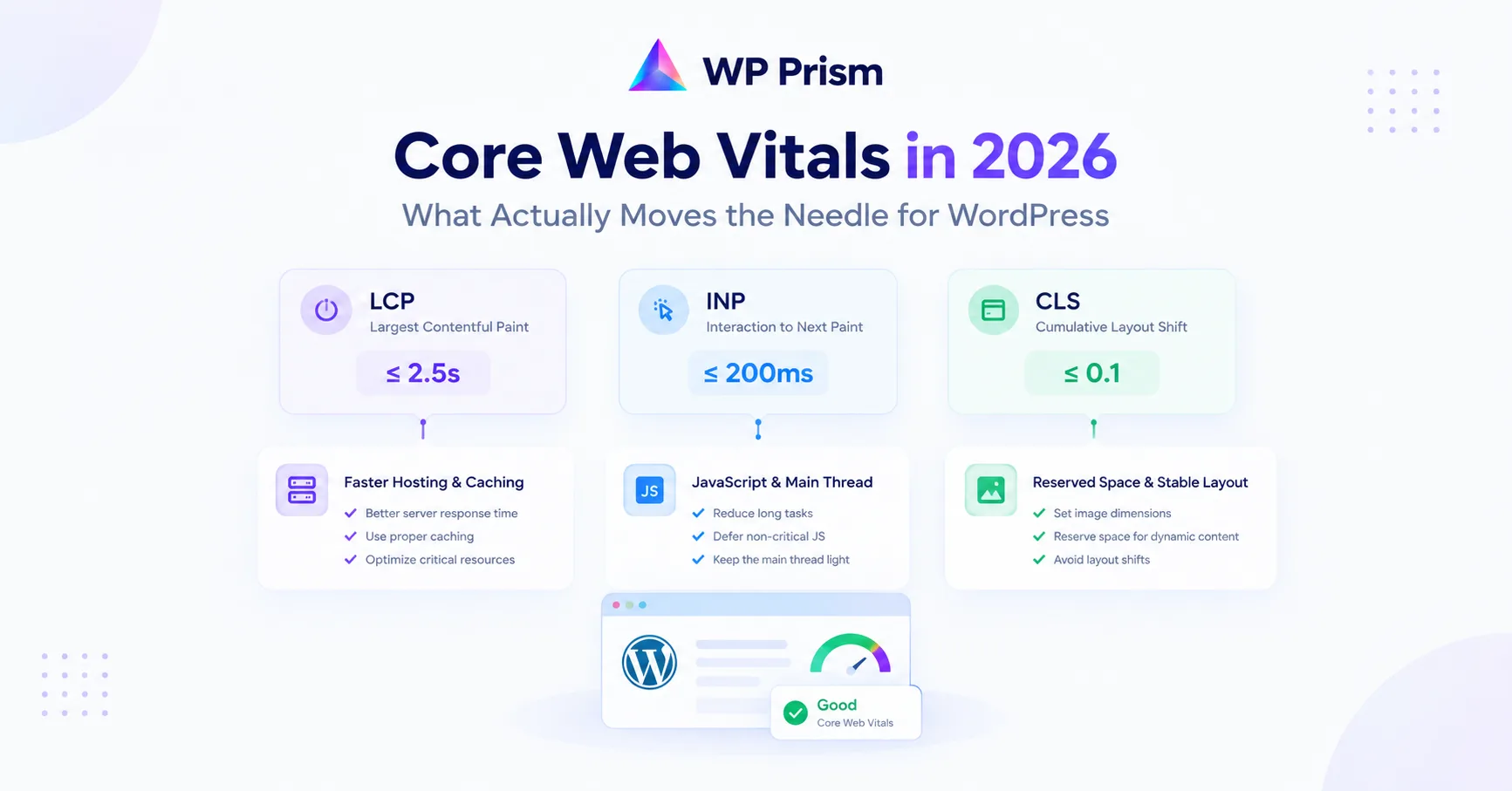
Core Web Vitals were introduced as a ranking signal in 2021 and have been refined every year since. In 2026 they’re no longer new, but they’re still widely misunderstood on WordPress sites. Most performance advice either oversimplifies (“just install a caching plugin”) or goes deep into server level optimizations that most WordPress site owners don’t control.
This post focuses on what actually moves the scores on a real WordPress site, the changes that show up in PageSpeed Insights and Search Console, not the ones that feel productive without doing much.
The Three Metrics That Matter
Google’s Core Web Vitals assessment currently covers three metrics:
Largest Contentful Paint (LCP): how long it takes for the largest visible element on the page to finish loading. Usually an image or a hero section. Google’s threshold for a good score is under 2.5 seconds.
Interaction to Next Paint (INP): how quickly the page responds to user interactions like clicks and taps across the full page session. Replaced First Input Delay in March 2024. Good score is under 200 milliseconds.
Cumulative Layout Shift (CLS): how much the page layout shifts unexpectedly as it loads. An image that loads late and pushes content down, or a font swap that changes text size, both contribute to CLS. Good score is under 0.1.
Failing any one of these puts your page in the “needs improvement” or “poor” category in PageSpeed Insights. All three need to pass for a page to get a green Core Web Vitals assessment.
What Actually Fixes LCP on WordPress
LCP is where most WordPress sites lose points and where fixing it has the most visible impact.
The hero image is almost always the LCP element. If your above the fold design includes a large background image, a banner, or a featured image, that element is what Google is measuring. The fixes:
Preload the LCP image. Add a <link rel="preload"> tag for your hero image in the document head so the browser starts fetching it immediately rather than discovering it later during render. Most caching plugins have a setting for this. If yours doesn’t, add it manually in your theme’s header or via a plugin like WP Rocket or Perfmatters.
Use WebP format. WebP images are significantly smaller than JPEG or PNG at comparable quality. WordPress has supported WebP uploads since version 5.8. Convert existing images using a plugin like Imagify or ShortPixel, both have free tiers that cover most small to medium sites.
Serve images at the right size. A 2400px wide image displayed at 800px width is loading three times more data than needed. Use WordPress’s built in image sizes and make sure your theme is referencing the correct size for each context rather than always loading the full size original.
Improve server response time (TTFB). If your server takes over 600 milliseconds to respond before the browser has even started loading anything, LCP will be slow regardless of what else you do. This is a hosting problem more than a WordPress problem. Managed WordPress hosting (Kinsta, WP Engine, Cloudways) consistently outperforms shared hosting on TTFB. A full page caching plugin helps significantly on shared hosting by serving pre-built HTML instead of running PHP on every request.
What Actually Fixes INP on WordPress
INP is where page builders cause the most damage. Elementor, Divi, and similar builders load significant JavaScript across every page on your site, including pages where their features aren’t actively needed. That JavaScript has to be parsed and executed by the browser before interactions feel responsive.
Audit what JavaScript is loading globally. Use the Coverage tab in Chrome DevTools (open DevTools, press Ctrl+Shift+P, type Coverage) to see which scripts are loading on your page and how much of each is actually used. Scripts that are 80 to 90 percent unused on a given page are candidates for deferring or removing.
Defer non critical JavaScript. Scripts that don’t need to run before the page is interactive should have defer or async attributes. Most caching and performance plugins have a JavaScript deferral setting. Be cautious: deferring scripts that other scripts depend on can break functionality. Test thoroughly after enabling.
Remove unused plugins. Every active plugin has the opportunity to load JavaScript on your pages. Deactivate plugins you’re not using. For plugins you are using, check whether they load scripts globally or only on pages where their feature is active. A contact form plugin that loads its scripts on every product page is adding unnecessary weight.
Use a lightweight block theme or minimal page builder configuration. If INP is consistently poor across your site and you’re running a full page builder, this is the most impactful but also most involved fix. Moving to a block based theme with a targeted block library reduces the JavaScript footprint significantly compared to a monolithic builder loading everything everywhere.
What Actually Fixes CLS on WordPress
CLS is the most straightforward of the three to fix and often takes an afternoon rather than a rebuild.
Add width and height attributes to all images. When a browser doesn’t know an image’s dimensions before it loads, it can’t reserve space for it in the layout. The image loads, the layout shifts to accommodate it, and your CLS score takes a hit. Fix: make sure every <img> tag in your theme, templates, and content has explicit width and height attributes. WordPress adds these automatically for images inserted through the media library since version 5.5. Check your theme’s manually coded image outputs if you’re seeing CLS from images.
Declare font display swap. Web fonts that load after the initial render cause a layout shift when the fallback font swaps to the web font (which is often a different size). Add font-display: swap to your font face declarations so the browser uses the fallback font immediately and swaps without a layout jump. Google Fonts supports this via the display=swap parameter in the embed URL.
Reserve space for embeds and iframes. YouTube embeds, map embeds, and other iframes that load at variable heights cause CLS if their container doesn’t have a fixed aspect ratio declared. Use the aspect ratio CSS property or a fixed height container to prevent the layout from shifting as they load.
The Caching Plugin Question
Every Core Web Vitals guide mentions caching plugins. They help, but they’re not a substitute for fixing the underlying issues above.
A caching plugin (WP Rocket, W3 Total Cache, LiteSpeed Cache if you’re on LiteSpeed hosting) improves TTFB and reduces server load significantly. It’s worth having. But a cached page that still loads a 3MB unoptimized hero image and 400KB of globally loaded page builder JavaScript will still have poor LCP and INP scores. The caching plugin gets you a faster delivery of the same bloated page.
Fix the page first, then cache it.
Frequently Asked Questions
Do Core Web Vitals actually affect rankings? Yes, but as one signal among many. A site with excellent content and strong backlinks can outrank a faster site with weaker content. Core Web Vitals matter most in competitive niches where content quality is roughly equal across the top ranking pages.
Should I use a separate performance plugin or does my caching plugin cover it? Most caching plugins cover the basics: full page caching, image lazy loading, JavaScript deferral. Dedicated performance plugins like Perfmatters go further on script management and offer more granular control over what loads where. For most WordPress sites, a good caching plugin plus manual image optimization gets you most of the way there.
How do I check my actual Core Web Vitals scores? Google Search Console shows your real user data under Experience → Core Web Vitals, broken down by mobile and desktop. PageSpeed Insights at pagespeed.web.dev shows both lab data and real user data for individual URLs. Use Search Console for a site wide view and PageSpeed Insights for diagnosing specific pages.
My scores are good on desktop but poor on mobile. What do I focus on? Google uses mobile scores for ranking. Mobile poor performance is almost always a combination of larger images relative to available bandwidth, more aggressive JavaScript execution on lower powered devices, and layout issues that only appear at narrow viewport widths. Prioritize mobile in all your testing.
The plugins you choose directly affect your Core Web Vitals. At WP Prism we build every plugin to load only on pages where it’s needed, with no unnecessary global scripts. See our plugin lineup.