
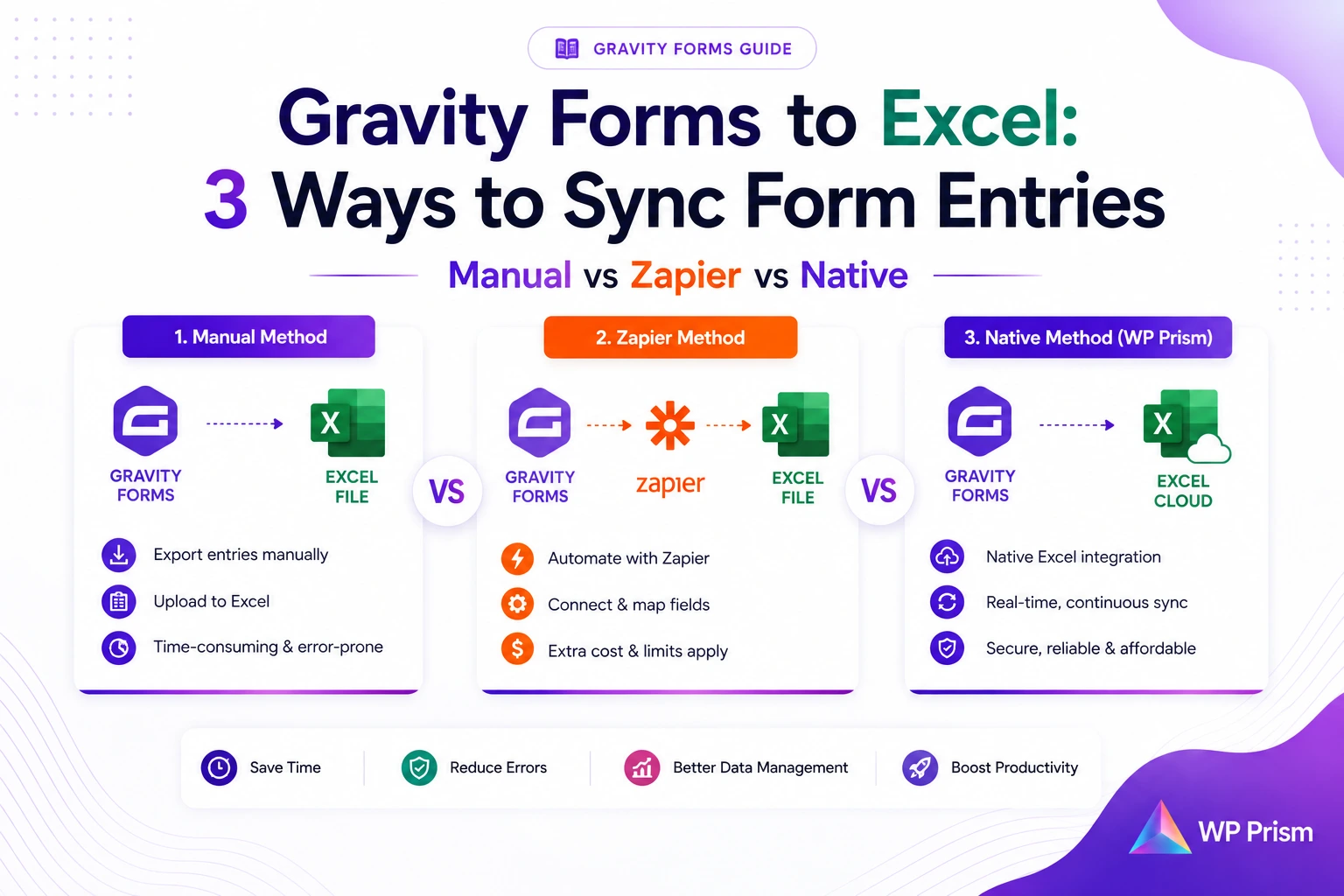
Getting Gravity Forms entries into Microsoft Excel sounds like it should be simple. The data is already there in your WordPress dashboard. Excel is already open on someone’s desktop. The gap between the two is smaller than it looks, and yet for a lot of teams it becomes a recurring manual chore, or an automation bill that quietly grows every month.
There are three realistic ways to close that gap. Each one works. Each one costs something different in time, money, or maintenance. Here is what you actually get with each approach so you can pick the one that fits your setup.
Method 1: Manual CSV Export
Gravity Forms has a built in export tool under Forms → Import/Export. You select the form, pick a date range, choose which fields to include, and download a CSV. Open that in Excel and you have your data.
When it works well: one off data pulls, audits, monthly reporting where a human is already reviewing the data anyway, and situations where the volume is low enough that a 10 minute export task doesn’t add up to much.
Where it falls apart: anything recurring. If someone on your team is exporting entries every Monday morning, that task compounds across weeks and months into a real time cost. It also introduces a lag: whatever happened between the last export and now isn’t in the spreadsheet yet, which matters for any workflow where people make decisions based on the data.
There’s also the version problem. Once you download a CSV and someone edits it in Excel, that file is its own thing. The next export doesn’t merge with it, it replaces it. Managing which version of the spreadsheet is current becomes its own job.
Cost: free, already included in Gravity Forms. The cost is the time it takes every time someone does it.
Method 2: Zapier
Zapier can watch your Gravity Forms for new entries and push that data to a Microsoft Excel spreadsheet automatically. The setup is a few steps: authenticate both services, pick the trigger (new Gravity Forms entry) and the action (add row to Excel table), map your fields, and turn the Zap on.
For a team already paying for Zapier to run other workflows, folding this in as one more Zap costs nothing extra. That’s a real advantage and worth stating clearly.
The problem shows up when Zapier is being considered specifically for this one job. Gravity Forms pricing starts at $59 a year for a single site Basic license, $159 a year for Pro covering up to three sites, and $259 a year for Elite on unlimited sites. Add a Zapier Professional plan on top of that for multi step Zaps and you’re looking at another $240 to $360 a year, purely for the automation layer. On a busy form, a single Zap can burn through a task tier’s monthly allotment on its own, at which point Zapier either pauses the Zap or bills you overage fees.
There’s also a data path consideration. Every entry that goes through Zapier passes through Zapier’s platform before it lands in Excel. For forms collecting contact details, job applications, or client information, that’s worth thinking about before you set it up.
Cost: free if Zapier is already in your stack. $240 to $360+ a year if you’re standing up a plan specifically for this workflow.
Method 3: A Native Gravity Forms to Excel Addon
The Gravity Forms Microsoft Excel Cloud Addon connects Gravity Forms directly to Microsoft Excel Cloud using Microsoft’s own API. No Zapier account, no task meter, no third party platform between your form and your spreadsheet.
When a new entry comes in, it syncs to your designated Excel workbook in real time. The connection is direct: your WordPress site talks to Microsoft’s API, and the row appears in Excel. There is no middleman logging the data in between.
What this looks like in practice:
- A job application form submits and the applicant’s details appear in the hiring team’s shared Excel workbook within seconds
- A lead capture form syncs every entry live so the sales team is always looking at current data, not last week’s export
- A client onboarding form populates a project tracking spreadsheet automatically so nothing has to be manually transferred
The addon sits flat at a fixed annual price, so the cost doesn’t scale with how many entries your forms collect. Whether you have 100 entries a month or 10,000, the price is the same.
Cost: fixed annual fee for the addon, no per task pricing, no overage fees.
Side by Side
| Manual Export | Zapier | Native Addon | |
|---|---|---|---|
| Setup time | None, already available | 15 to 30 minutes | 15 to 20 minutes |
| Sync speed | Manual, on demand | Near real time | Real time |
| Recurring cost | Free (time cost only) | $240 to $360+/year for a standalone plan | Fixed annual addon fee |
| Scales with entry volume | Yes (more exports needed) | No (task costs rise with volume) | Yes (flat fee regardless of volume) |
| Data passes through third party | No | Yes, through Zapier | No |
| Best for | One off pulls, low volume | Teams already on Zapier | Teams wanting real time sync without per task fees |
Which One Should You Choose
Go with the manual export if your reporting cadence is monthly or less, someone is already reviewing the data by hand, and the time cost is genuinely low.
Go with Zapier if you’re already paying for a plan that covers this Zap, or if you need Gravity Forms connected to Excel and several other services at the same time and Zapier is the right hub for all of it.
Go with a native addon if you want real time sync, you’re not already on Zapier, your form volume is high enough that task based pricing would hurt, or you’d rather keep your entry data on a direct path between WordPress and Microsoft without a third platform in between.
For most teams running Gravity Forms on one or more sites with a recurring need to get data into Excel, the native addon is the cleaner and cheaper long term option. The one time setup is comparable to configuring a Zap, and there’s no monthly variable to worry about as your forms grow.
Frequently Asked Questions
Does this work with Microsoft Excel on desktop, or only Excel Online? The native addon syncs to Microsoft Excel Cloud (Excel Online via OneDrive or SharePoint). Your desktop Excel can open and edit the same file, since Microsoft keeps them in sync, but the integration itself writes to the cloud workbook.
Do I need a specific Gravity Forms plan for the addon? The addon works with any active Gravity Forms license. You need at least the Basic plan ($59/year) to use Gravity Forms at all.
What happens to existing entries when I first set up the addon? The addon syncs new entries going forward from the point of connection. Existing entries in your Gravity Forms database are not retroactively pushed to Excel. For a historical data pull, use the built in CSV export for the initial import, then let the addon handle everything going forward.
Can I map specific form fields to specific Excel columns? Yes. Field mapping is configured during setup so each form field writes to the correct column in your workbook.
Stop exporting CSVs by hand or paying per task for a simple sync. Get the Gravity Forms Microsoft Excel Cloud Addon and have new entries land in Excel automatically from the moment they submit.