
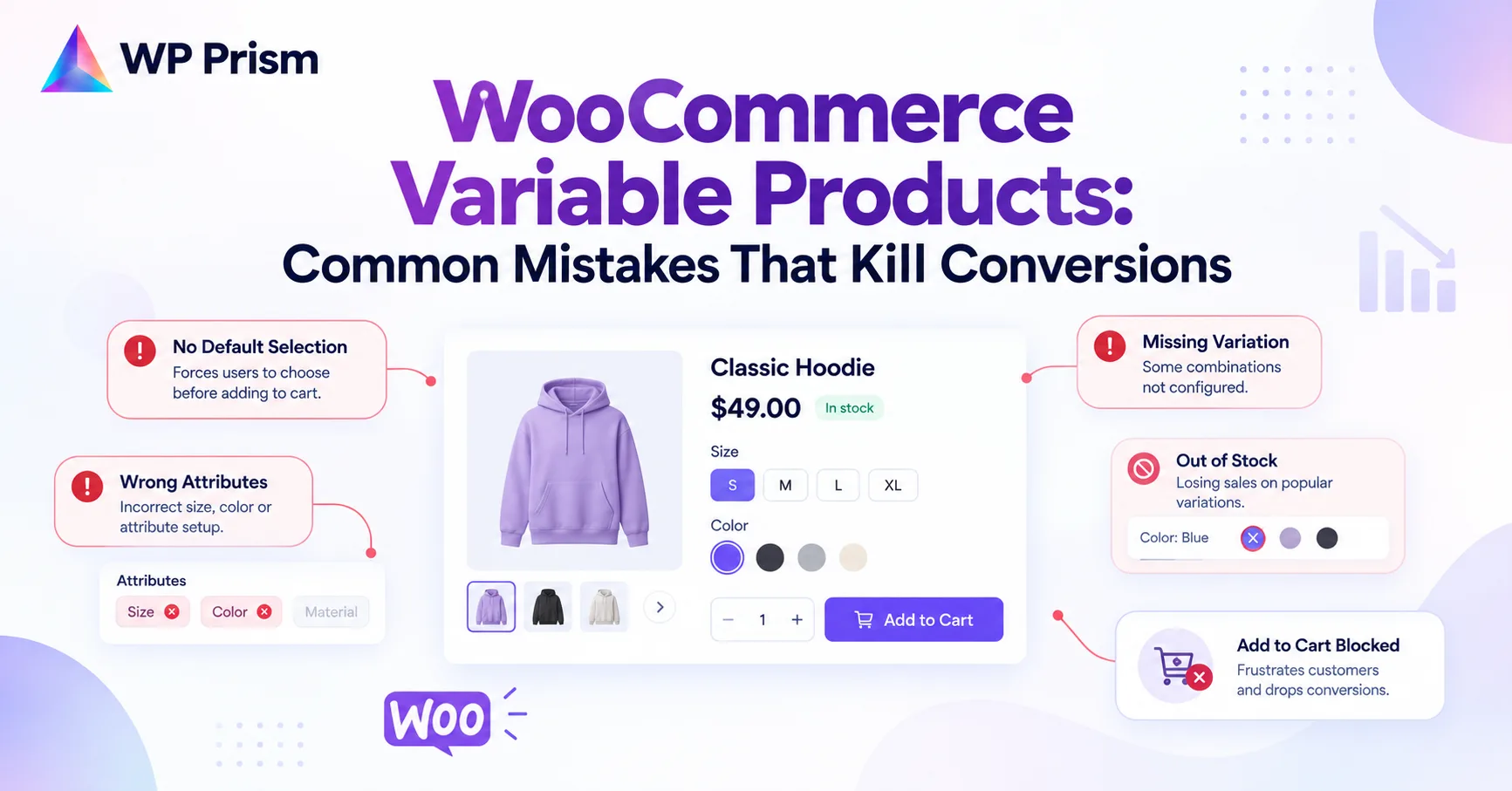
Variable products are one of WooCommerce’s most capable features. One product listing, multiple variants, clean URL structure, unified reviews. Done well, they reduce the number of product pages you need to manage while giving customers a smooth selection experience.
Done poorly, they’re one of the fastest ways to lose a customer who was already ready to buy. The mistakes below are common, quiet, and fixable. Here’s what to look for on your own store.
Mistake 1: No Images on Individual Variations
This is the most common and most damaging mistake on variable product pages. A customer selects “Navy Blue” from the color dropdown and the product image stays on the default photo showing the white version. Or worse, it goes blank.
WooCommerce supports assigning a unique image to each variation. When a customer selects a variant, the product gallery updates to show that variant’s image. If you haven’t assigned images per variation, customers are buying blind on anything that isn’t the default option.
The fix: in the product edit screen under Product Data → Variations, expand each variation and assign an image using the small image icon on the left of each variation row. Every variation that looks meaningfully different from the default needs its own image.
For variations where the visual difference is subtle (different quantities of the same item, for example), the default image may be fine. For anything involving color, finish, style, or size where fit matters visually, variation images are not optional.
Mistake 2: Showing “Out of Stock” With No Alternative
When a customer lands on a product page and selects a variation that’s out of stock, WooCommerce’s default behavior is to show a greyed out or disabled state with no guidance on what to do next. No restock date, no “notify me” option, no suggestion of a similar in stock variant.
That customer came to buy. The stock situation isn’t their problem. The way you handle it is.
The fix: use a back in stock notification plugin or a simple “notify me when available” setup so customers can leave their email and get an alert when the variant restocks. At minimum, make sure out of stock variations show a clear message rather than a silent disabled state. Some stores also reorder their variation dropdown to show in stock options first, which reduces the chance of a customer’s first selection being unavailable.
Mistake 3: Too Many Attributes on One Product
A product with three size options and four color options is 12 variations, manageable. A product with five sizes, six colors, three materials, and two fit types is 180 variations, and the selection interface becomes a decision paralysis machine.
Customers faced with too many dropdown selectors before they can add something to cart tend to abandon rather than commit. The cognitive load of making four sequential choices from a product page is higher than most impulse purchases can survive.
The fix: audit your variable products for attribute count. If a product has more than two or three attributes, consider whether some of them are better handled as separate product listings, or whether the attributes can be simplified. A “Size Guide” link next to a single size dropdown often converts better than a size and fit combination split across two dropdowns.
Mistake 4: Variation Specific Data That Doesn’t Update on Selection
This is a subtler problem but a significant one for stores selling products where specifications matter. A customer selects “Large” and wants to know the dimensions, weight, or material composition for that specific size. If your product page shows static spec information that doesn’t change when they switch variants, they either have to guess or they leave to find a more informative listing.
WooCommerce’s native variation system updates price, stock, and image when a variant is selected. It doesn’t update custom data fields by default. Showing variation specific specs, care instructions, or technical details requires bridging ACF fields into the variation switch event.
The fix: the ACF Addon for WooCommerce Variations handles exactly this. Attach ACF fields to each variation in the product edit screen, and the addon updates those field values on the frontend when the customer switches variants, without any custom JavaScript.
Mistake 5: Inconsistent Pricing Across Variations With No Explanation
Variable products let you set different prices per variation, which is correct and expected when sizes, materials, or quantities genuinely cost differently. The mistake is showing a wide price range (“$29 to $149”) in the product listing with no clear explanation of what drives the difference until after the customer has already landed on the page.
Customers who see a large price range in search results or category pages often click through expecting the lower price to apply to what they want, and then feel misled when it doesn’t.
The fix: make the pricing logic visible on the product page before the customer makes a selection. A short line like “Price varies by material: standard from $29, premium from $89” sets expectations correctly. Some stores add this as a product short description line that appears above the variation selectors.
Mistake 6: Not Managing the “Any” Default Variation State
By default, WooCommerce variable products load with dropdowns set to “Choose an option” and no variation pre selected. This means the Add to Cart button is disabled until the customer makes a selection, and the page shows a price range rather than a specific price.
For products where one variation is significantly more popular than others, making customers actively choose before they can add to cart adds unnecessary friction.
The fix: set a default variation on popular products. In the product edit screen under Product Data → Variations, click Select default values at the top of the variations section and set the most commonly purchased variant as the default. The page will load with that variant pre selected, the specific price showing, and the Add to Cart button active immediately.
Mistake 7: Variation Descriptions Left Empty
Each WooCommerce variation has an optional description field that appears below the variation selectors when that variant is selected. Most stores leave it empty on every variation. That’s a missed opportunity to address the specific questions a customer has about the variant they’re considering.
A size Large that runs narrow, a blue colorway that photographs lighter than it appears, a premium material variant that has a longer lead time, these are the details that answer objections before they become reasons not to buy.
The fix: go through your most purchased and most abandoned variations and add short, specific descriptions to each. One or two sentences per variation is enough. Focus on information that differs from the default or that customers frequently ask about in support.
Frequently Asked Questions
Do variable products affect my store’s SEO differently than simple products? Variable products use a single URL for all variations by default, which consolidates reviews, backlinks, and page authority rather than splitting them across multiple pages. This is generally better for SEO than separate product pages per variation, provided your product page content is detailed enough to rank for variation specific searches.
How many variations is too many before WooCommerce performance suffers? WooCommerce loads all variation data for a product on the product page. Above roughly 30 variations, you may notice slower product page load times. Above 100 variations, performance impact becomes significant. If you’re above these thresholds, consider filtering which variations load by default or using a plugin that handles large variation sets more efficiently.
Can I show different product tabs or sections per variation? Not natively. Variation specific content in standard WooCommerce is limited to the variation image, price, stock, SKU, and the variation description field. For richer per variation content, ACF fields via the variations addon give you more flexibility.
Showing variation specific specs, materials, or details that update when customers switch variants? Get the ACF Addon for WooCommerce Variations and stop losing buyers who need more information before they commit.