
If you’ve already set up PrismSync to create QuickBooks invoices from Gravity Forms, you’re handling one common use case. But invoices aren’t always the right QuickBooks record. When someone pays upfront through your form, an invoice that then needs to be manually marked as paid is an extra step that shouldn’t exist. And when a separate payment form is used to settle an existing invoice, you need a Payment record, not a new invoice.
PrismSync handles all of this. Here’s how to set up Sales Receipts and Payment recording so the right QuickBooks record gets created automatically based on what the form submission actually represents.
Sales Receipt vs Invoice vs Payment: Which One to Use
Before configuring feeds, it’s worth being clear on which QuickBooks record fits each scenario since getting this wrong means your books don’t reflect reality accurately.
Invoice: use when you’re billing a customer for something they’ll pay later. The invoice sits open in QuickBooks until a payment is recorded against it. Right for service businesses sending invoices after project completion, or stores offering net payment terms.
Sales Receipt: use when payment is collected at the point of sale or form submission. The customer pays now, the receipt records both the sale and the payment in one step. Right for event registrations, upfront service deposits, product purchases processed outside WooCommerce, or any form where money changes hands at submission time.
Payment: use when an existing QuickBooks invoice needs to be marked as paid. Right for follow up payment forms where a customer settles an open invoice separately from when it was created.
Setting Up a Sales Receipt Feed
When to Use This
A Sales Receipt feed makes sense for:
- Event registration forms where the ticket price is collected at submission
- Deposit or retainer forms where clients pay upfront before work begins
- Product order forms outside of WooCommerce where the price is fixed and payment is confirmed at submission
- Workshop or course enrollment forms with upfront payment
Configuration
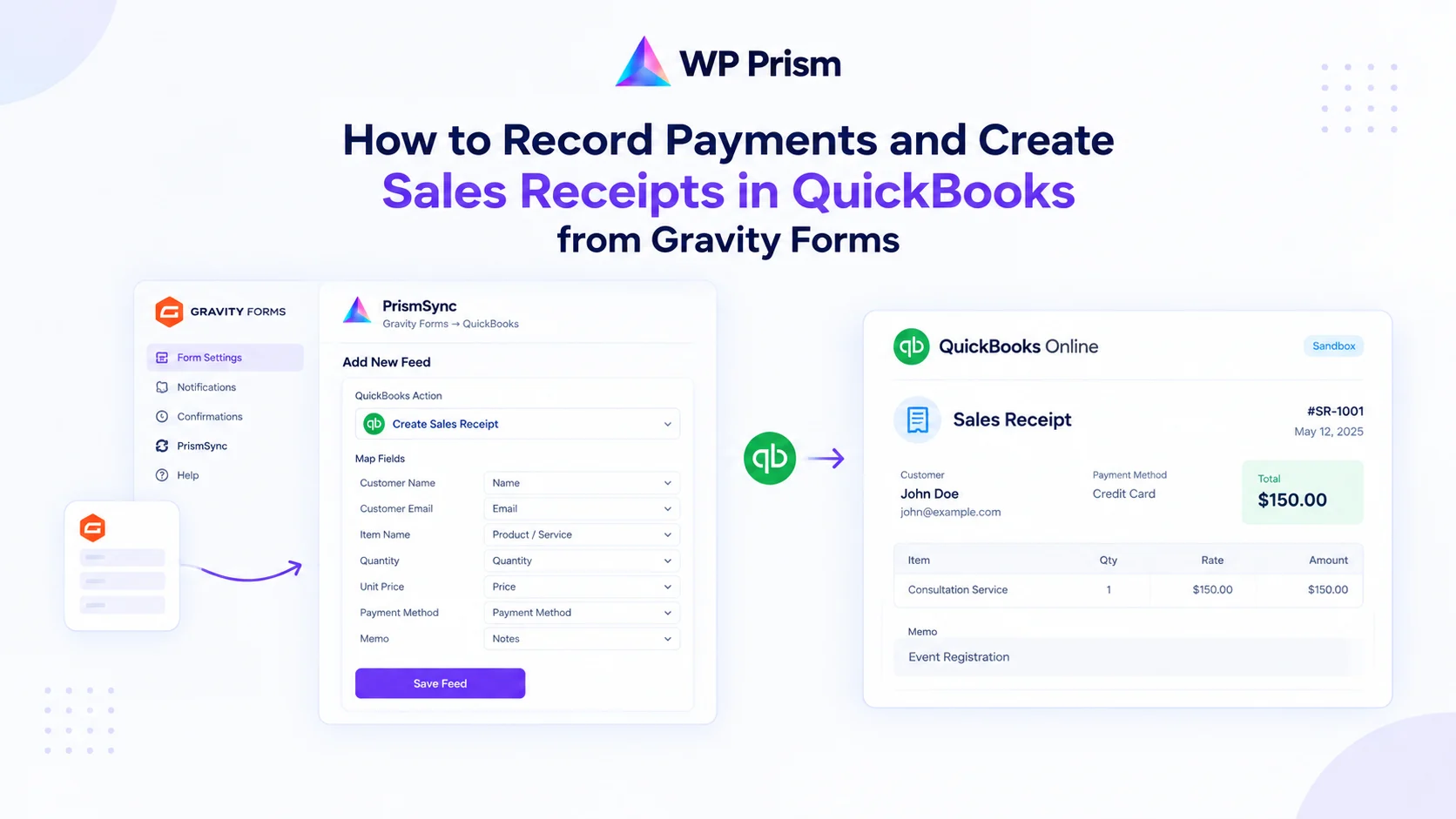
Go to your Gravity Form, navigate to Form Settings → QuickBooks, and click Add New to create a feed.
Select action: choose Create Sales Receipt.
Customer mapping: same as the invoice setup. Map your Name and Email fields. With Auto Create Customer enabled, PrismSync finds an existing customer by email first, then by display name, and creates a new one if no match is found.
Line item mapping: map your product or service fields to the Sales Receipt line items. Each line item needs:
- Item Name or Description (map from a product name or service type field)
- Quantity (map from a quantity field or set a fixed value of 1 if quantity isn’t collected on the form)
- Unit Price (map from a price field, or enter a fixed amount if the price is always the same)
Payment method: optionally map a payment method field from your form (Credit Card, Bank Transfer, Cash) to the QuickBooks Payment Method field on the receipt. If your form doesn’t collect this, leave it blank or set a default.
Memo: map a notes or message field to the Sales Receipt memo if you want a reference note on each receipt. Useful for event names, booking references, or any identifier that helps your bookkeeper recognize what the receipt is for.
Save the feed.
Setting Up a Payment Feed
When to Use This
A Payment feed makes sense for:
- A separate payment form where clients enter a reference number or invoice number to settle an existing open invoice
- A follow up form sent to clients after service delivery where they pay the balance
- Any workflow where invoice creation and payment collection happen at different points in time through different forms
Configuration
Create a new feed on the relevant form and select Record Payment as the action.
Customer mapping: map Name and Email as before so PrismSync can find the correct customer in QuickBooks.
Invoice reference: map a form field that contains the QuickBooks Invoice ID or Invoice Number to the Payment’s invoice reference field. This is how PrismSync knows which open invoice to apply the payment to. If your payment form doesn’t collect this, you may need to add a field for it or use the memo field as a reference and match manually in QuickBooks.
Payment amount: map the amount field from your form to the Payment Amount field. If the payment always settles the full invoice balance, you can set this to the invoice total. If partial payments are possible, map the actual amount field.
Payment method and date: optionally map payment method and payment date fields if your form collects them.
Save the feed.
Using Conditional Logic Across Multiple Feeds
One Gravity Form can serve multiple scenarios using conditional logic on each feed. For example, a booking form that offers both a deposit option and a full payment option can have two PrismSync feeds:
- Feed 1 (Sales Receipt): fires when “Payment Type” equals “Full Payment”
- Feed 2 (Invoice): fires when “Payment Type” equals “Deposit Only”
To set this up, enable conditional logic in each feed’s settings and define the rules based on the relevant form field. Entries that match the condition trigger that feed. Entries that don’t are ignored by that feed but may trigger another one.
This keeps one form handling multiple payment scenarios cleanly without needing separate forms for each case.
Testing Both Feeds in Sandbox
Before going live, test each feed type in QuickBooks Sandbox:
- Make sure your PrismSync settings are on the Sandbox environment
- Submit a test entry that should trigger a Sales Receipt
- Log in to app.sandbox.qbo.intuit.com and check Sales → All Sales for the new Sales Receipt
- Check the Gravity Forms entry for a note confirming the QuickBooks record ID
- Repeat for a Payment feed, verify the payment appears against the correct open invoice in Sandbox
Once both look correct, switch to Production credentials and reconnect.
Frequently Asked Questions
Can one form submission create both a Sales Receipt and an Invoice? Yes, using multiple feeds with conditional logic. But a single submission shouldn’t typically create both, since a Sales Receipt already records the sale and payment together. Use one or the other based on the payment timing for that specific scenario.
What if the customer doesn’t exist in QuickBooks when a Payment is recorded? With Auto Create Customer enabled, PrismSync creates the customer first, then records the payment. However, a payment without a linked invoice just creates a credit in QuickBooks. Make sure your payment form workflow assumes an invoice already exists or pair it with an Invoice feed on a prior form.
Can I set a fixed product or service item that always appears on Sales Receipts? Yes. In the line item mapping, you can enter a fixed item name rather than mapping it from a form field. This works well for standard services with a fixed name and price where the form just collects the customer details.
Does PrismSync support QuickBooks payment processing or just record keeping? PrismSync records QuickBooks transactions only. It doesn’t process card payments. For payment processing on your form, pair PrismSync with a Gravity Forms payment addon like Stripe for Gravity Forms, then use PrismSync to create the corresponding QuickBooks record after successful payment.
What QuickBooks Online plans support Sales Receipts and Payments via the API? All QuickBooks Online plans (Simple Start, Essentials, Plus, and Advanced) support Sales Receipts and Payments via the Intuit API. PrismSync works with all of them.
Already using PrismSync for invoices? Download the free plugin and add Sales Receipt and Payment feeds to your existing forms today.