
Learn how to automatically sync your WooCommerce orders directly to Microsoft Excel Online in real-time with zero manual CSV exports and no middleman servers.
Step-by-Step Setup Guide #
Step 1: Access the Plugin Settings #
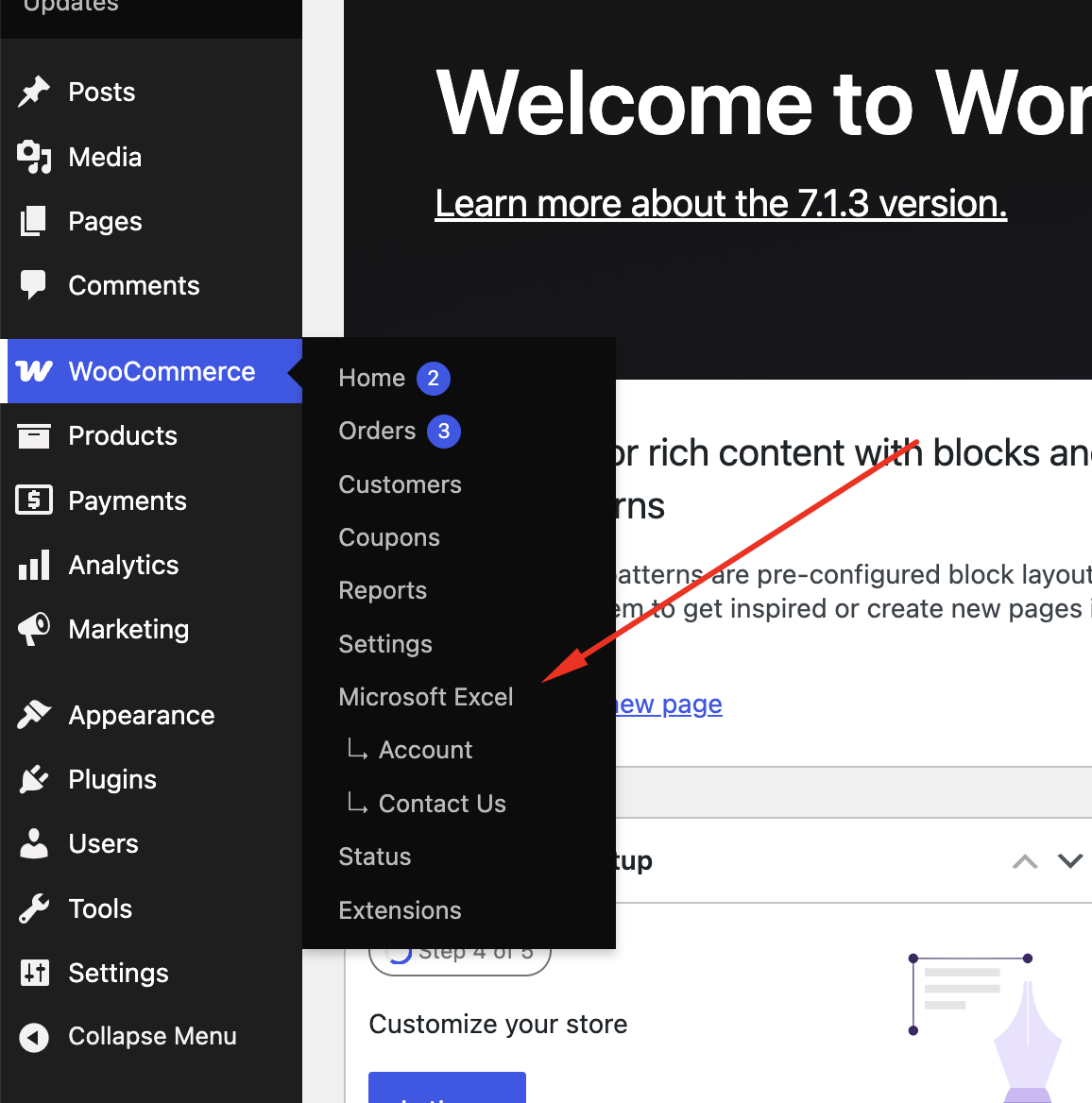
After activating the plugin, navigate to WooCommerce → Microsoft Excel from your WordPress admin menu.
Step 2: Connect Your Microsoft Account via Azure OAuth #
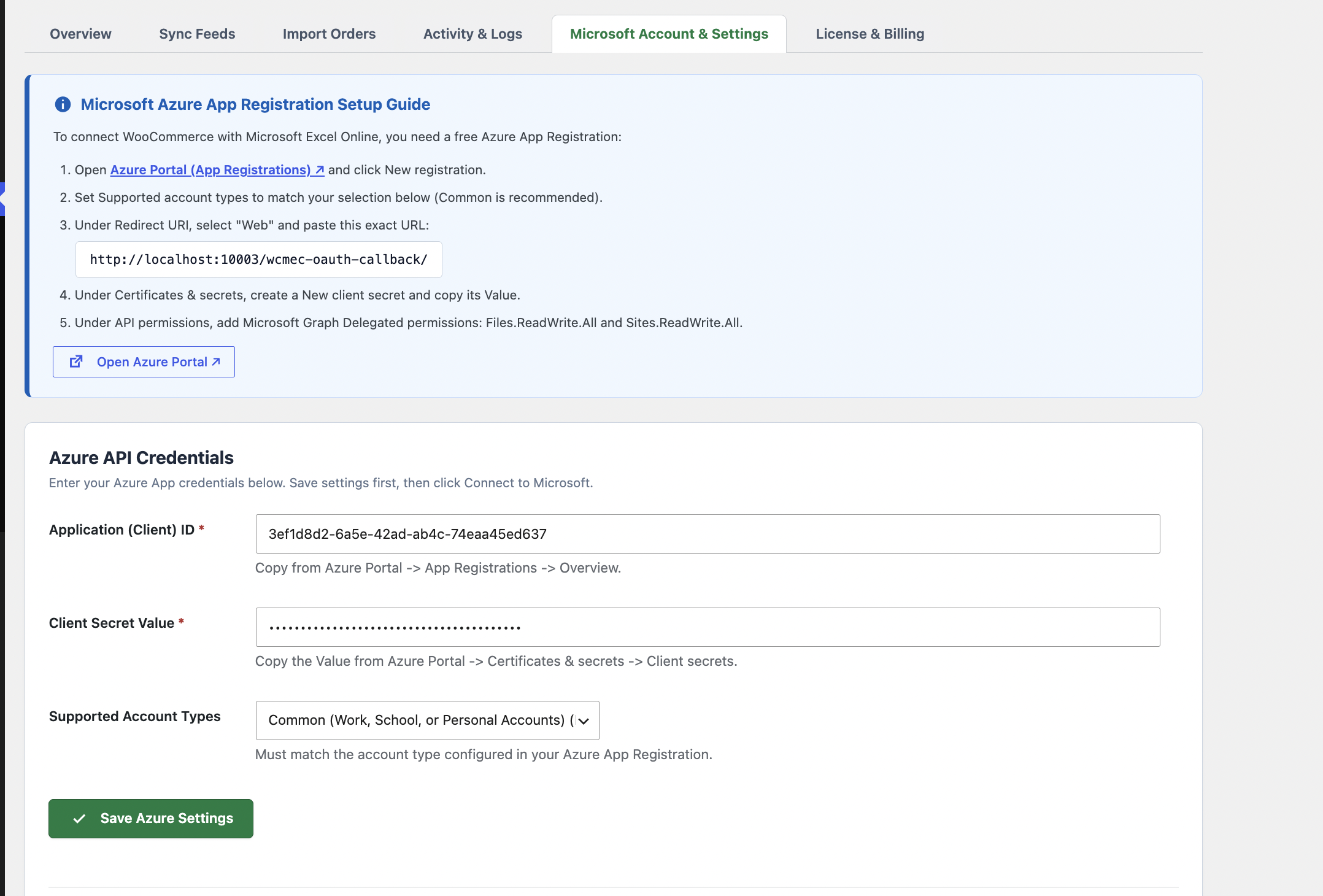
The plugin connects directly from your WordPress installation to the official Microsoft Graph API, keeping your customer order data completely private:
- Go to the Azure Portal (App Registrations) and click New registration.
- Name your app (e.g., WooCommerce Excel Sync) and set supported account types to Common (Accounts in any organizational directory and personal Microsoft accounts).
- Under Redirect URI, select Web and paste your site’s redirect callback URL provided on the settings page.
- Go to Certificates & secrets and create a new client secret. Copy the secret Value.
- In WordPress, open the Microsoft Account & Settings tab, enter your Application (Client) ID and Client Secret, click Save Azure Settings, and then click Connect to Microsoft to authorize.
Excel Online Requirement: Open your target spreadsheet in Microsoft Excel Online, highlight your header row, and click Home → Format as Table. Microsoft Graph API requires your headers to be formatted as an Excel Table.
Step 3: Create & Configure Your Sync Feeds #
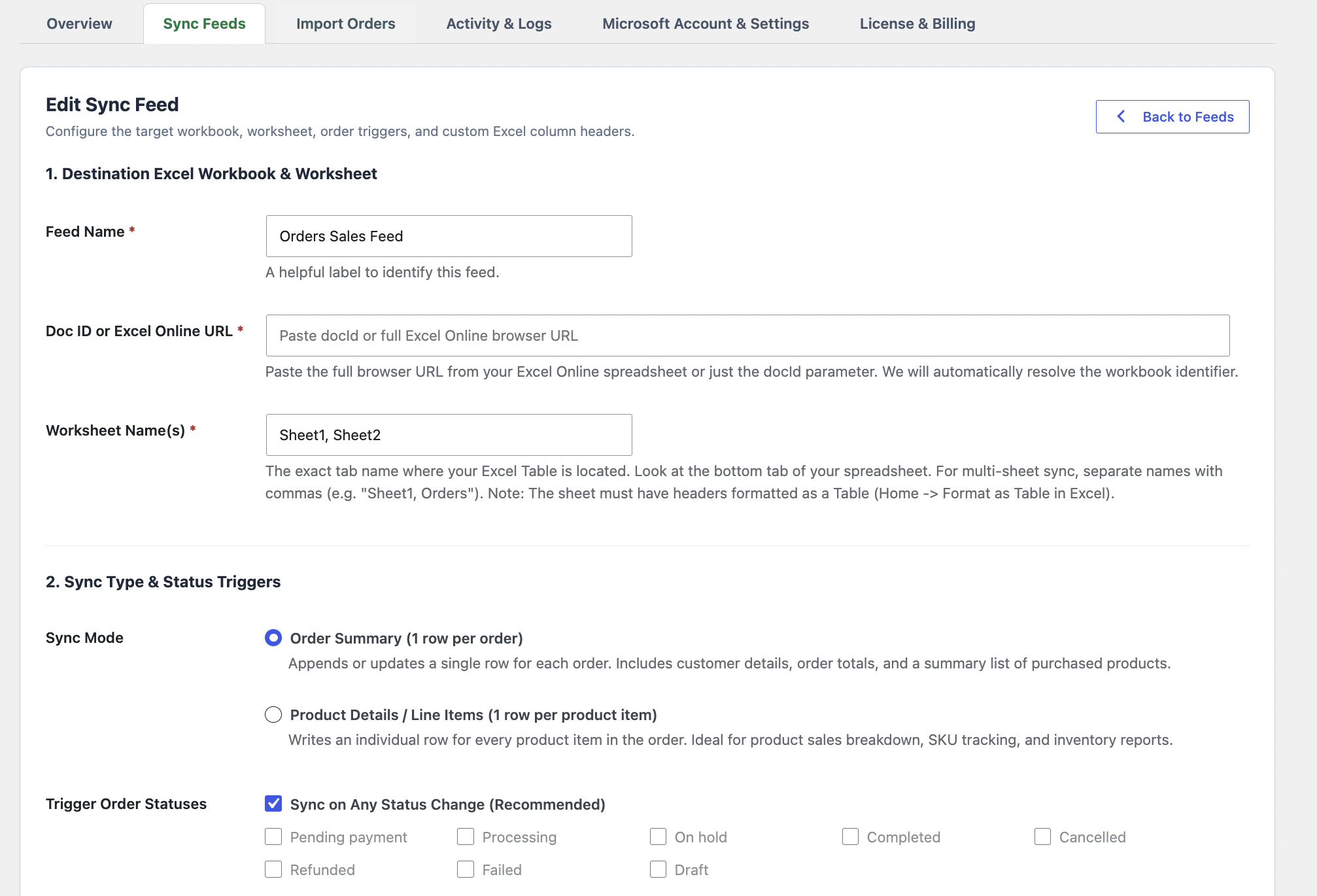
Navigate to the Sync Feeds tab and click Add New Feed:
- Feed Name: Enter a friendly name for this feed (e.g., Main Orders Feed).
- Doc ID or Excel Online URL: Paste the full browser URL of your online Excel spreadsheet.
- Worksheet Name(s): Enter your sheet tab name (e.g.,
Sheet1) or multiple comma-separated sheets (e.g.,Sheet1, OrdersBackup). - Sync Mode: Choose between Order Summary (1 row per order) or Product Details / Line Items (1 row per purchased product).
- Trigger Statuses: Select Sync on Any Status Change (Recommended) to enable automatic in-place row updates.
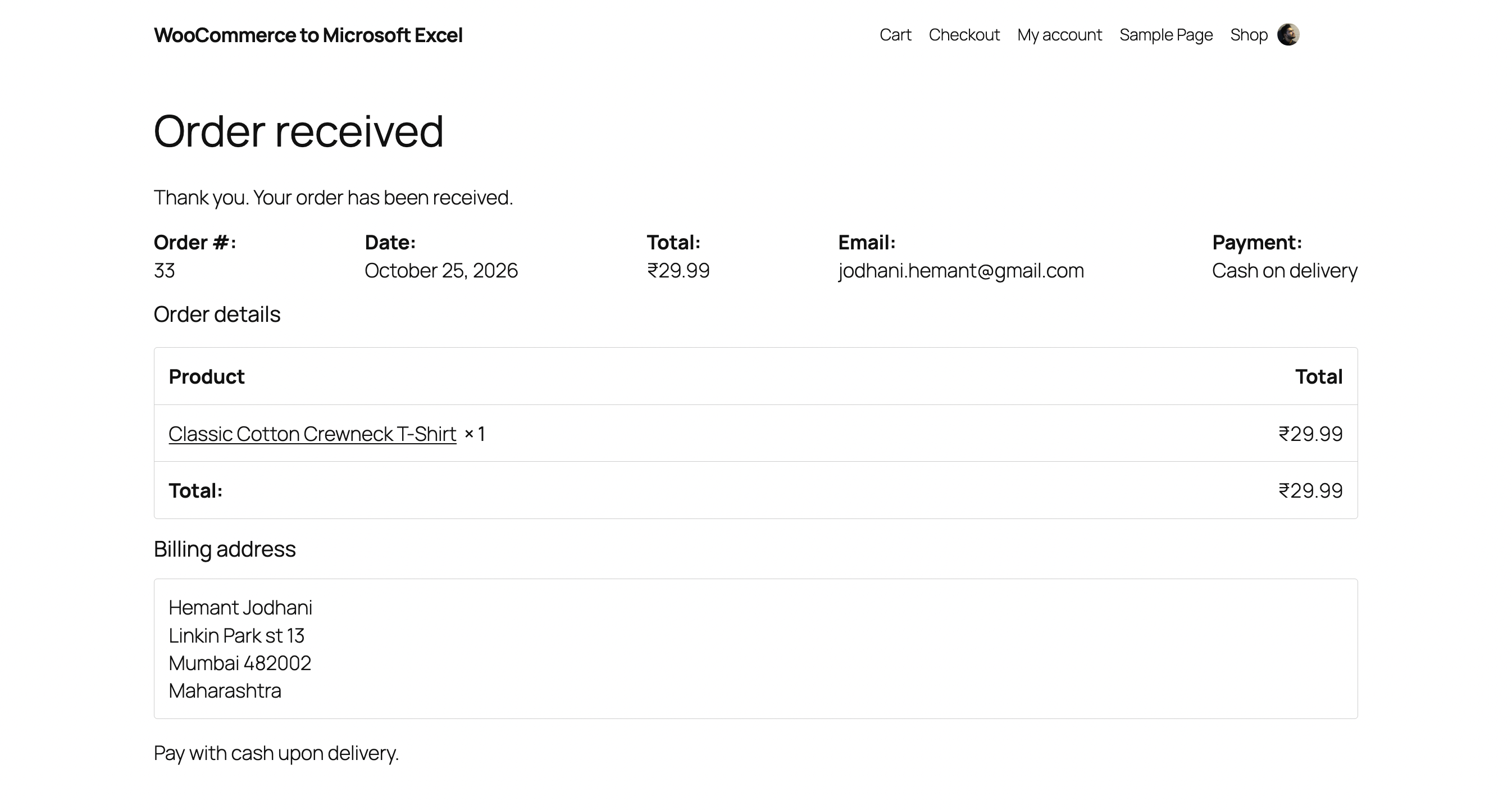
Step 4: Customer Checkout #
Whenever a customer places an order or completes payment on your store, the plugin immediately syncs the order in the background with zero impact on checkout speed.
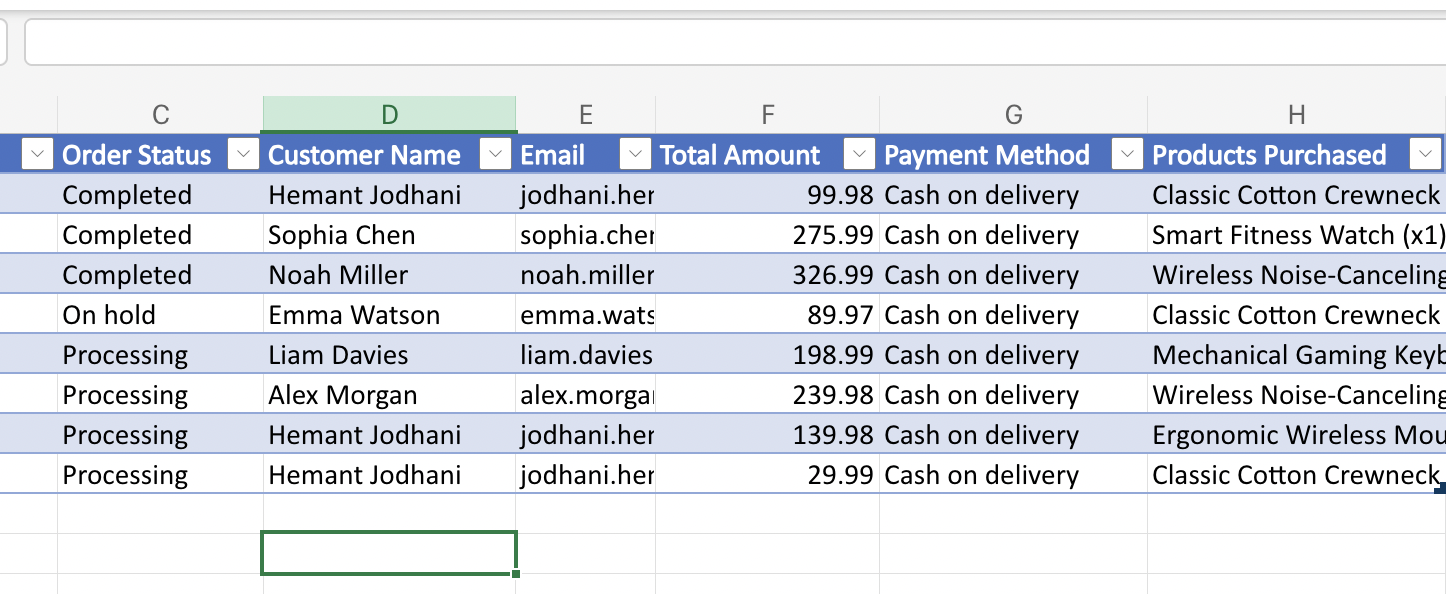
Step 5: Real-Time Synchronization in Excel Online #
The order data appears instantly in your Microsoft Excel Online spreadsheet, including Order Number, Status, Customer Name, Email, Totals, and Products Purchased.
Frequently Asked Questions #
How does In-Place Row Updating work? #
When an existing order changes status (for example, from Processing to Completed or Refunded), the plugin locates the existing row in your Excel spreadsheet matching that Order Number and updates the status cell in place. It never creates duplicate rows.
Can I send order data to multiple worksheets? #
Yes. Simply separate worksheet names with commas in your feed settings (e.g., Sheet1, OrdersBackup, Accounting). The plugin will write or update rows in each tab simultaneously.
What happens if Microsoft’s server is temporarily unavailable? #
Any failed sync attempts are automatically captured in a background retry queue and retried up to 3 times via WP-Cron, ensuring no orders are lost during network hiccups.
Is this compatible with High-Performance Order Storage (HPOS)? #
Yes. The plugin is 100% certified and fully compatible with WooCommerce High-Performance Order Storage (HPOS) as well as traditional WordPress post storage.


Leave a Reply