
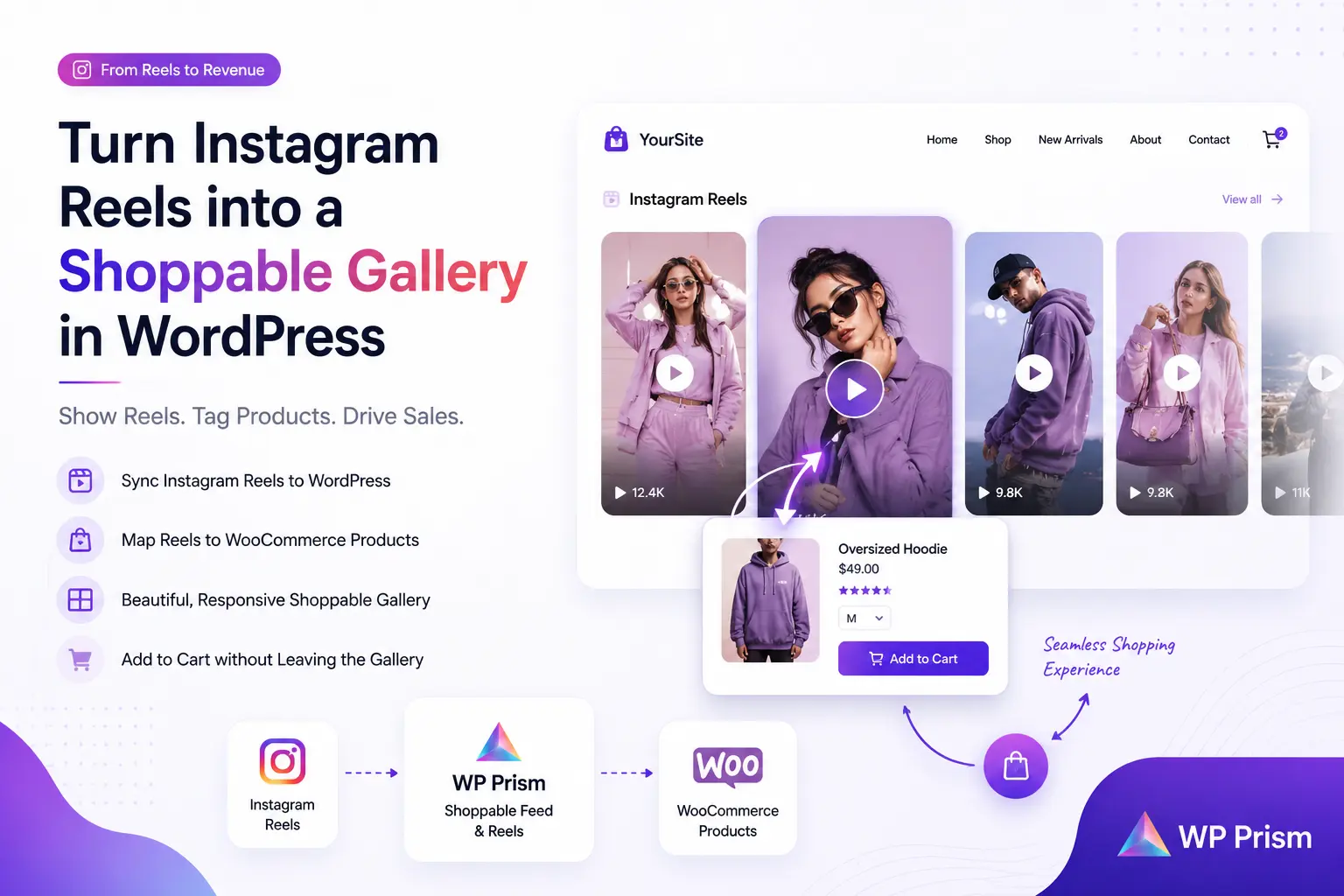
If you’re running a WooCommerce store, your Instagram content is already doing half the selling for you. The problem is that a “link in bio” is where most of that momentum dies. Someone watches your reel, gets excited about the product, taps your profile, and then has to hunt through a grid of posts to find the right link. Most of them won’t bother.
A shoppable gallery fixes that gap. Instead of sending traffic to Instagram and hoping it trickles back to your store, you bring your Instagram content, reels, posts, and all, directly onto your WordPress site, with each item linked straight to a product page. In this guide, we’ll walk through exactly how to set one up.
Why a Shoppable Feed Beats a Standard Instagram Embed
A basic Instagram embed just shows your posts. It’s decorative. A shoppable feed does three things a plain embed can’t:
- Maps WooCommerce products onto your synced posts and reels, so each piece of content has a real product sitting behind it
- Opens into a scrollable, story style lightbox on click, letting visitors browse post after post the same way they would inside Instagram itself, without ever leaving your site
- Surfaces the product as a card with a live “Add to WooCommerce Cart” button, so the path from seeing the item to buying it is a single click
For WooCommerce stores especially, this closes the loop between content marketing and checkout in a way a static Instagram widget never will.
What You’ll Need
- A WordPress site running WooCommerce (or any product catalog you want to link to)
- An Instagram Business or Creator account
- The Shoppable Social Feed & Reels plugin
Step 1: Install and Activate the Plugin
From your WordPress dashboard, go to Plugins → Add New, search for Shoppable Social Feed & Reels, install, and activate. If you’re installing manually, upload the plugin ZIP under Plugins → Add New → Upload Plugin.
Step 2: Connect Your Instagram Account
Navigate to the plugin’s settings page and connect your Instagram Business account. This uses Instagram’s official API, so your login credentials are never stored on your server. You’re authorizing access through Meta’s own authentication flow.
Once connected, the plugin pulls in your recent posts and reels automatically, ready to be organized into a gallery.
Step 3: Map WooCommerce Products to Your Posts
This is the step that actually makes the feed “shoppable.” For each post or reel you want to feature:
- Select the post from your synced media
- Click Map Product
- Search your WooCommerce catalog and select the matching product (or products, if a single reel features more than one item)
- Save
Repeat this for however many posts you want live in your gallery. You don’t need to map a product to every single post you’ve ever published. A curated selection of your best performing content usually converts better than a full, unfiltered feed.
Step 4: Customize the Gallery Layout
Most stores get the best results with a grid layout on category or homepage placements, and a scrollable “reel strip” for mobile. Inside the plugin’s design settings, you can adjust:
- Grid columns (2 to 5 depending on your theme width)
- Hover behavior (show product name and price on hover, or tap to reveal on mobile)
- Reel autoplay (muted autoplay is generally the better converting default)
Step 5: Add the Gallery to Your Site
The plugin includes both a Gutenberg block and a shortcode, so it works whether you’re using the block editor, Elementor, or another builder:
- Gutenberg: search for “Shoppable Feed” in the block inserter
- Shortcode:
[shoppable_social_feed_reels], drop this into any page, post, or widget area - Elementor: use the Shortcode widget with the same shortcode above
Good placements to test: homepage below the hero, product category pages, and the footer of high traffic blog posts.
What the Shopping Experience Actually Looks Like
On the front end, visitors first see a clean grid of your synced posts and reels, with your handle and a live connection indicator up top. Clicking any tile opens a full screen, scrollable lightbox, the same swipe or scroll motion people already know from Instagram Stories. As they move through the posts, the mapped product appears as a card layered over the image: name, price, a short description, and an Add to WooCommerce Cart button. No redirect, no new tab, the add to cart action happens right there in the lightbox.
This is worth mentioning explicitly in your own product copy or screenshots. It’s the detail that separates a shoppable gallery from a glorified Instagram widget: the buying moment happens exactly where the interest peaked.
Step 6: Test the Shopping Flow
Before you publish, click through as a customer would. Open the lightbox, scroll through a few posts, and confirm the product card shows the correct item, price, and that Add to WooCommerce Cart actually adds it (with the right variation pre-selected, if applicable). A broken product mapping is worse than no mapping at all, since it erodes trust right at the moment of highest purchase intent.
Real World Placement Ideas
- Homepage hero strip. First thing visitors see, builds social proof immediately
- Product page sidebar. “As seen on Instagram” featuring the exact product in real use
- Blog post embeds. If you write style guides or tutorials, embed relevant reels inline
Common Mistakes to Avoid
- Mapping too many products to one post. One clear product per reel keeps the lightbox card focused; stacking several products against a single 15 second clip just confuses the viewer.
- Ignoring mobile layout. The majority of Instagram driven traffic arrives on mobile, so always preview your gallery on a phone before publishing.
- Forgetting to refresh stale content. Set a reminder to review and retag your gallery monthly so it doesn’t go stale next to your newest posts.
Frequently Asked Questions
Do I need Instagram Shopping enabled to use this? No. The plugin maps products against your own WooCommerce catalog directly, independent of Instagram’s native Shopping feature or approval process.
Will this slow down my site? Shoppable Social Feed & Reels is built to be lightweight. Media is lazy loaded, so galleries load images and reels only as visitors scroll to them.
Can I use this without WooCommerce? Yes. You can link tagged products to any external URL, which works for affiliate links, non WooCommerce catalogs, or third party checkout pages.
How often does the feed sync with Instagram? The feed syncs automatically on a schedule, and you can also trigger a manual sync any time from the plugin dashboard.
Ready to turn your Instagram content into a sales channel? Download Shoppable Social Feed & Reels and have your first gallery live in under 15 minutes.