
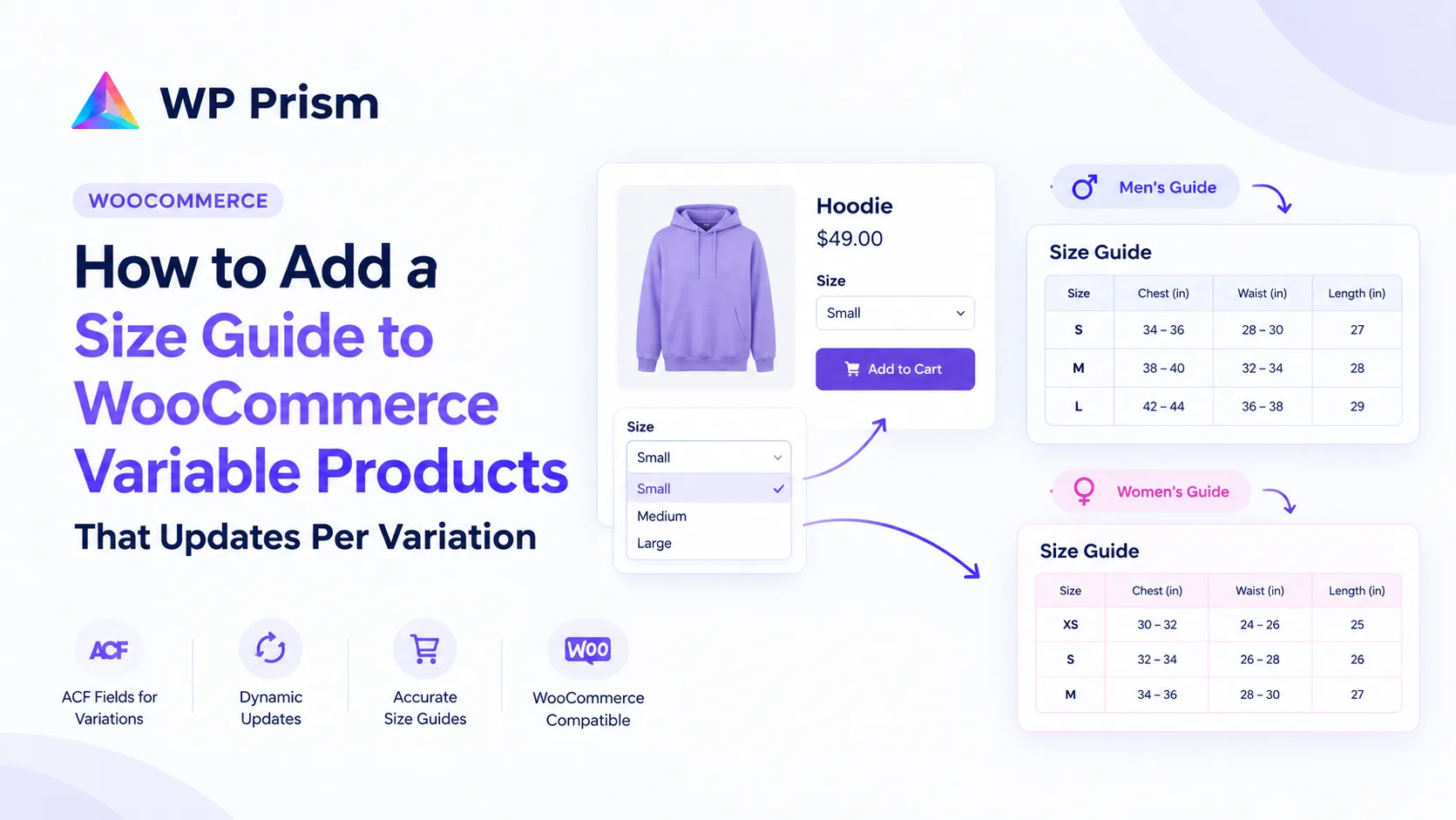
Size guides are one of those product page elements that look fine until you think about them carefully. Most WooCommerce stores add a size guide as a tab in the product description, a custom field, or a popup link. It shows up on the product page and that is considered done.
The problem surfaces when a store sells variable products where the sizing is actually different per variation. A clothing store selling a unisex product in men’s and women’s cuts. A footwear store where the same style has different sizing across regions. A gear brand where a “Small” in one material runs differently from a “Small” in another. In those cases, a single static size guide is not just unhelpful, it can actively send customers to the wrong size and generate returns.
Here is how to build a size guide that updates when the customer changes their variation selection.
Why Static Size Guides Fail Variable Products
WooCommerce’s variation system updates three things when a customer selects a variant: the price, the product image, and the stock status. Everything else on the page stays static.
This means any size guide you have added as a product description, ACF custom field, or meta box value displays the same content regardless of which variation is selected. If you have entered variation specific sizing data in the backend, the frontend has no way to know which variation is currently active and which data to show.
The standard workaround is to put all sizing information in one table and annotate it: “Men’s sizing applies to SKUs ending in M, Women’s sizing applies to SKUs ending in W.” This works but creates cognitive load exactly when you want the customer’s decision to be simple.
The Better Approach: ACF Fields That Update on Variation Switch
Advanced Custom Fields (ACF) gives you a clean way to attach structured data to individual product variations in the WordPress admin. You can create a field group specifically for variations: a size guide table, a fit description, material composition, care instructions, whatever is variation specific for your products.
The gap: ACF fields attached to variations do not update on the frontend when a customer switches variants. The ACF data is there, correctly stored per variation, but WooCommerce’s variation switching event does not know about it, so the page displays the default state and does not refresh ACF field values.
ACF Addon for WooCommerce Variations fills this gap. It hooks into WooCommerce’s variation selection event and refreshes ACF field values on screen when the customer changes their selection. No custom JavaScript required. The field updates the same way the price and image update: automatically, on selection.
Setting It Up
Step 1: Create Your Variation Field Group in ACF
In your WordPress admin, go to Custom Fields → Add New and create a field group for your size guide data. Add the fields you need. For a size guide, a common setup is:
- Size Guide Table (field type: Textarea or a Repeater if you want structured rows): the actual sizing data for this variation
- Fit Description (Text): a short note like “Runs true to size” or “Cut slim, size up”
- Model Reference (Text): “Model is 6ft and wearing size M” or equivalent
Set the location rule to Product Variation so the field group appears on each variation’s edit panel inside the product.
Step 2: Enter Variation Specific Data
Open a variable product and go to the Variations tab. Expand each variation and you will see your ACF field group. Enter the size guide data for each variation individually. A men’s cut gets men’s sizing. A women’s cut gets women’s sizing. Each variation has its own accurate data.
Step 3: Display the Fields on the Product Page
In your theme or Elementor template, add the ACF field output to the product page in the location where you want the size guide to appear. Using ACF’s standard the_field() function is fine for theme-based stores. For Elementor, use a Dynamic Tag set to the ACF field key.
For the size guide to appear in a logical place, a good default position is below the variation dropdowns and above the Add to Cart button, so customers see the relevant sizing information immediately after selecting their variant.
Step 4: The Addon Handles the Dynamic Updates
With ACF Addon for WooCommerce Variations installed and active, no additional configuration is needed for the dynamic behavior. When a customer selects a variation on the product page, the addon detects the selection and refreshes the ACF field values to match the selected variation. The size guide updates automatically. What was showing for Size M disappears and the Size L data takes its place.
What Else You Can Do With Variation Specific ACF Fields
Size guides are the clearest use case but not the only one. The same approach works for any data that is genuinely different per variation:
Material composition. A product available in cotton and polyester versions can show the actual material breakdown for whichever variant is selected, rather than listing both materials with an asterisk.
Care instructions. A garment that can be machine washed in one material and requires dry cleaning in another can show the correct care label per variation.
Technical specifications. For gear, electronics accessories, or hardware, each variation may have different weight, dimensions, compatibility, or performance specs. Displaying the correct spec sheet per selected variant removes a common pre-purchase hesitation.
Sustainability or certifications. If some variants are certified organic or have specific environmental credentials and others do not, per-variation ACF fields let you display that accurately without a confusing footnote.
Common Mistakes to Avoid
Entering the same data in every variation. If your size guide really is identical across all variants, a static display is fine. Use variation specific fields only where the data actually differs per variant.
Using the field group for non-variation content. Keep the variation field group focused on data that changes per variant. Supplemental product content that is the same across all variations belongs in the standard product description or a separate ACF field group assigned to products, not variations.
Skipping the display template update. The addon handles the dynamic switching, but you still need to output the field value in your template. The addon cannot display a field that has not been added to the page template.
Frequently Asked Questions
Does this require ACF Pro? The free version of ACF supports basic field types including Text and Textarea, which cover most size guide use cases. ACF Pro adds Repeater fields, which are useful if you want a structured multi-column size table. The ACF Addon for WooCommerce Variations works with both free and Pro.
Does it work with all WooCommerce themes? The addon hooks into WooCommerce’s standard variation switching JavaScript events, which all properly built WooCommerce themes support. It is theme independent.
Can I use this for a product with more than two attributes? Yes. A product with size and color and fit as attributes, for example, can have ACF fields that update when any combination is selected. The data shown reflects the specific variation the customer has selected, regardless of how many attribute dimensions the product has.
Will adding ACF fields to each variation slow down my product pages? Not meaningfully. ACF stores variation field data efficiently and retrieves it as part of WooCommerce’s standard variation data call. Adding a few text fields per variation does not create a noticeable performance impact.
What happens on mobile when the variation dropdown is a select element? The addon listens for the same variation selection events WooCommerce fires on both desktop and mobile. Size guide updates work on mobile the same way they work on desktop.
Need ACF fields to update when customers switch product variations? Get ACF Addon for WooCommerce Variations and stop showing the wrong size guide to the wrong customer.