
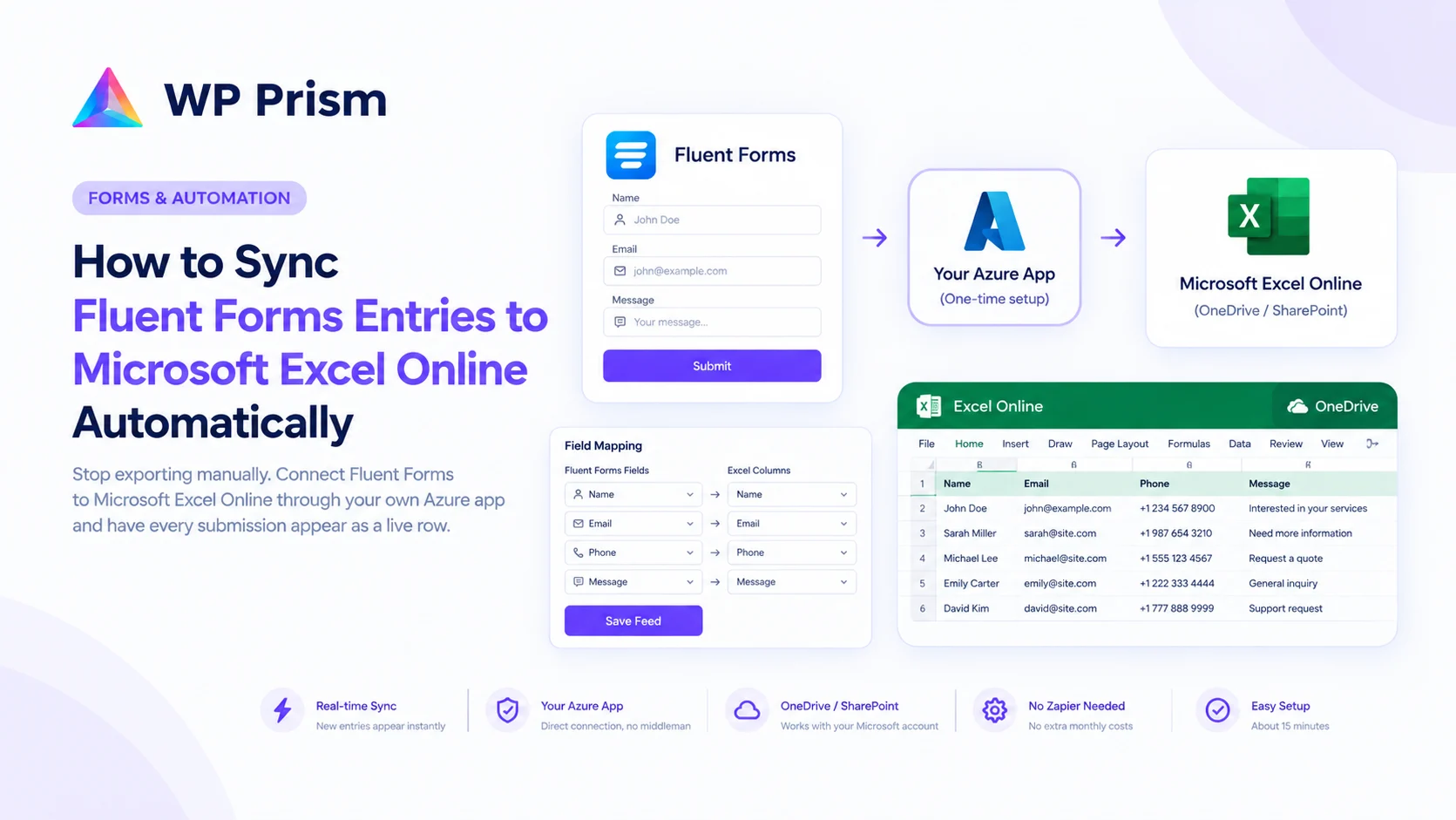
If your team uses Microsoft Excel to track form submissions, you have probably hit the same wall: Fluent Forms does not push entries to Excel automatically. The only built-in option is a CSV export, which means someone has to remember to export, open the file, copy the new rows into the master spreadsheet, and do it all again next week. The spreadsheet is almost never current, and the maintenance falls on whoever drew the short straw.
There is a cleaner way. Here is how to connect Fluent Forms directly to a live Excel file in OneDrive or SharePoint so every submission appears as a new row the moment the form is submitted.
What You Need
- Fluent Forms (free or Pro) installed and active
- A Microsoft account with OneDrive or SharePoint access
- An Excel workbook saved to OneDrive or SharePoint with your columns set up as an Excel Table
- The Microsoft Excel Cloud for Fluent Forms plugin, installed and licensed
One important prerequisite on the Excel side: your workbook columns need to be formatted as an Excel Table, not just a plain grid with headers. Microsoft’s Graph API, which the plugin uses to append rows, requires table formatting to work correctly. To set this up, select your header row and data range in Excel Online, go to Insert → Table, and confirm. This is a one-time step.
Step 1: Enable the Integration in Fluent Forms
After installing and activating the plugin, go to Fluent Forms → Integrations in your WordPress dashboard. Find the Microsoft Excel Cloud card and switch it to Enabled. This activates the integration module so it appears in your form settings.
Step 2: Copy Your OAuth Redirect URI
Go to Fluent Forms → Global Settings → Configure Integrations → Microsoft Excel Cloud. You will see an OAuth Redirect URI field. Copy this URL. It follows the pattern https://yourdomain.com/ffmec-oauth-callback/ with your actual domain. You will need this in the next step when setting up your Azure app.
Step 3: Register a Free Azure App
This is the one technical step in the setup. Microsoft requires an Azure app registration to authorize the connection between your WordPress site and your Excel files. It is free, takes about 15 minutes, and you only do it once.
- Go to portal.azure.com and sign in with your Microsoft account
- Search for App registrations and click New registration
- Give the app a name (something like “WP Fluent Forms Excel”) and set Supported account types to Accounts in any organizational directory and personal Microsoft accounts (Common)
- Under Redirect URI, select Web and paste the OAuth Redirect URI you copied in Step 2
- Click Register
- In the app’s left menu, go to Certificates & secrets → New client secret. Add a description, set an expiry, and click Add. Copy the Value immediately, it is only shown once
- In the left menu, go to API permissions → Add a permission → Microsoft Graph → Delegated permissions. Add these three:
Files.ReadWrite.AllandSites.ReadWrite.All - Click Grant admin consent if you are on a work or school account
Back in WordPress, go to Fluent Forms → Global Settings → Microsoft Excel Cloud and paste in the Application (Client) ID from your Azure app overview page and the Client Secret you copied. Set the account type to Common, click Save Settings, then click Connect and authorize your Microsoft account through the OAuth popup.
The connection is now active.
Step 4: Open Your Form and Add a Feed
Go to the Fluent Forms form you want to connect to Excel. Click Settings & Integrations, then Configure Integrations. Click Add New Integration and select Microsoft Excel Cloud Feed.
Step 5: Configure the Feed
You need two pieces of information from your Excel file:
Workbook Doc ID: Open your Excel workbook in Excel Online (via OneDrive or SharePoint) and copy the URL from your browser. Paste the full URL into the Doc ID field. The plugin extracts the workbook ID from the URL automatically.
Sheet Name: Enter the name of the tab where entries should appear, such as Sheet1. If you want entries to write to multiple sheets simultaneously, enter them as comma-separated values: Sheet1, Archive.
Field mapping: Click Map all form fields to auto-match your form fields to matching column headers in the Excel table. If your form field names match your column headers exactly, this fills the mapping in one click. For any that do not match, map them manually from the dropdowns.
Click Create Microsoft Excel Cloud Feed to save.
Step 6: Test and Verify
Fill in your form on the live site and submit a test entry. Open your Excel workbook in Excel Online. The test entry should appear as a new row in your table within a few seconds.
If you do not see it, check that the workbook columns are formatted as an Excel Table (not plain headers), and that the Sheet Name in the feed matches the tab name exactly, including capitalization.
What Happens With New Entries From Here
Every form submission from this point forward pushes a new row to your Excel file in real time. The sync happens the moment the form is submitted, not on a delay or schedule. If Microsoft’s API is temporarily unavailable, the plugin queues the entry and retries up to three times automatically, so entries are not lost during brief outages.
Your team can have the Excel file open in Excel Online, Excel desktop, or the Excel mobile app and see new entries appear as they come in. No one needs to touch WordPress, export anything, or remember a weekly task.
Use Cases This Works Well For
Lead tracking. A contact or inquiry form that feeds a shared sales team spreadsheet in real time. No CRM needed for smaller teams, and everyone has the same view of incoming leads.
Event registrations. Registration forms where the organizer team tracks attendance in an Excel file. New signups appear immediately without someone managing a list manually.
Job applications. Application forms where HR tracks candidates across departments in a shared OneDrive spreadsheet. Each submission arrives as a row with all the relevant fields already mapped.
Client intake. Agencies collecting project briefs or onboarding information from clients. The account team sees new briefs appear in their shared workbook the moment the client submits.
Internal requests. IT ticket forms, office supply requests, maintenance forms: anything where a team reads and acts on submissions from a shared spreadsheet benefits from live sync rather than periodic exports.
Frequently Asked Questions
Does this work with Fluent Forms Free or do I need Fluent Forms Pro? The Microsoft Excel Cloud plugin works with both Fluent Forms Free and Fluent Forms Pro. You do not need a Pro Fluent Forms license for the Excel integration to function.
Can I connect multiple forms to the same Excel workbook? Yes. You can create a feed on each form and point them all at the same workbook, either the same sheet or different tabs. Each form’s submissions appear in their designated location.
Can I connect one form to multiple Excel files? Yes. You can add more than one Microsoft Excel Cloud feed to a single form and route entries to different workbooks or sheets simultaneously.
What happens if a form field does not have a matching column in the Excel table? Fields that are not mapped simply do not write to the spreadsheet. No error is thrown. You can map only the fields you need and leave the rest unmapped.
Does this work with SharePoint document libraries, not just OneDrive? Yes. The plugin supports personal OneDrive, OneDrive for Business, and SharePoint document libraries. Paste the Excel Online URL from whichever location your workbook lives in, and the plugin handles the connection the same way.
Ready to stop exporting CSVs and have Fluent Forms entries sync to Excel automatically? Get Microsoft Excel Cloud for Fluent Forms and connect your first form in under 7 minutes.