
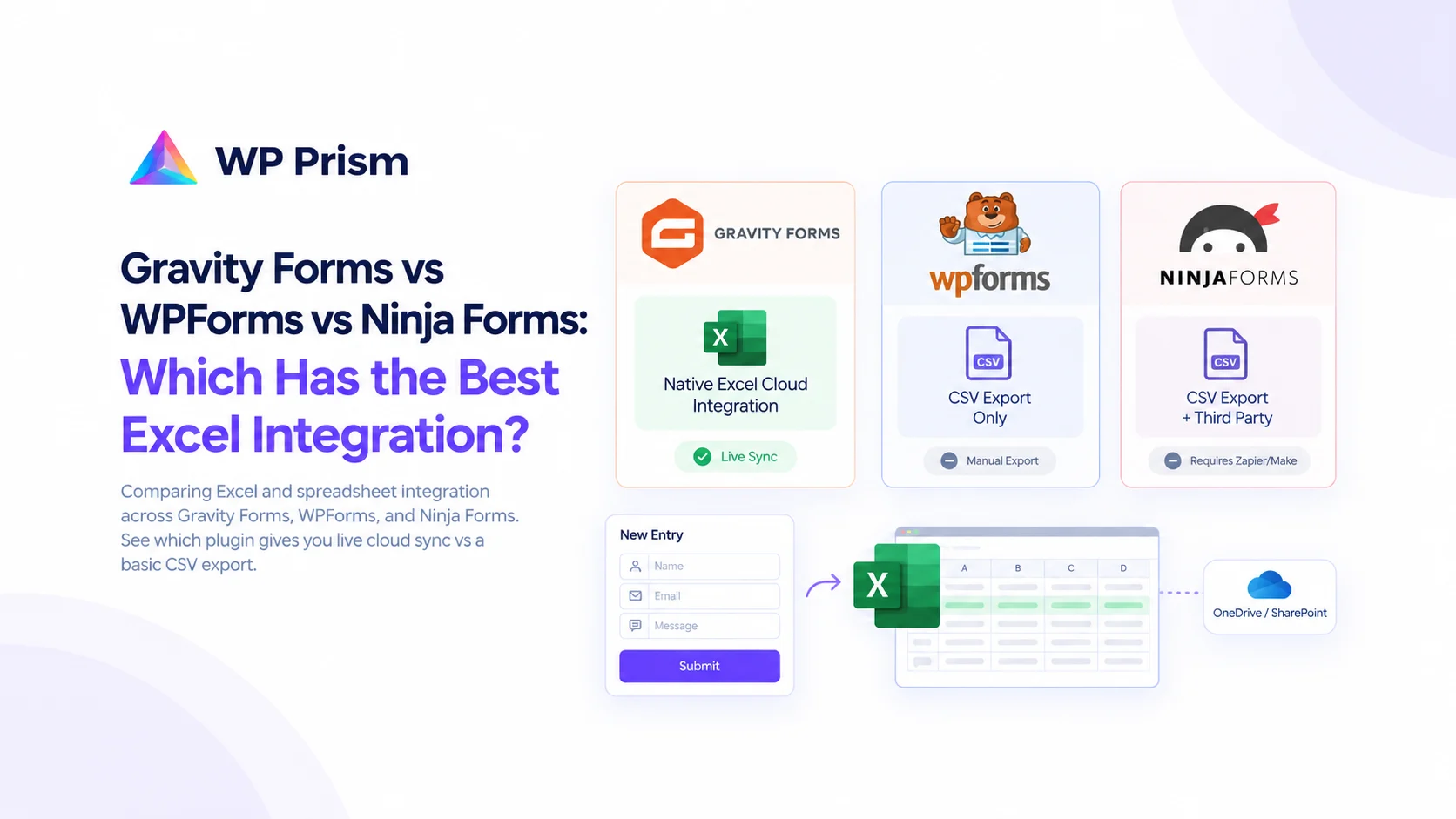
Most WordPress form plugins can get your data into a spreadsheet. The question is how much work that takes, and whether the spreadsheet is ever actually current.
A CSV export is not a live spreadsheet. It is a snapshot of your data at the moment you clicked export. The moment a new form entry arrives, the spreadsheet is already out of date. For a one time data pull, that is fine. For any workflow where people are reading and acting on form data regularly, a CSV export creates a permanent maintenance task: someone has to remember to re-export, re-upload, and re-share on a schedule that nobody ever keeps perfectly.
Here is how Gravity Forms, WPForms, and Ninja Forms each handle Excel and spreadsheet integration, and where the line falls between a basic export and a live sync.
WPForms: CSV Export, No Native Excel Sync
WPForms is one of the most installed form plugins on WordPress.org. Its entry management is clean, and the export function works well for what it is.
What it offers:
WPForms Pro includes an entry export feature that lets you download form submissions as a CSV file. You can filter by date range and select which fields to include. The file opens cleanly in Excel or Google Sheets.
The limitation:
There is no live sync to Excel or any cloud spreadsheet. Every export is manual. WPForms does not have a native Microsoft Excel Cloud addon. Integration with Excel Online or SharePoint requires a third party tool like Zapier or Make, which adds ongoing subscription cost and a dependency on a separate automation platform.
For teams that need Excel data to stay current automatically, WPForms leaves a gap that requires building around it externally.
Best for: One time data exports or teams already running Zapier for other automations.
Ninja Forms: CSV Export and Third Party Integrations
Ninja Forms takes a modular approach: the core plugin is free, and specific integrations are sold as separate addons. The entry management and export functionality in the base plugin is comparable to WPForms.
What it offers:
CSV export is available in the core plugin. Ninja Forms also has a dedicated Excel addon in its marketplace that handles some formatting improvements over a raw CSV. For cloud spreadsheet sync, the Ninja Forms Zapier addon or the general webhook support can route entries to Excel Online, but this requires an external automation service.
The limitation:
Like WPForms, there is no native live sync to Microsoft Excel Cloud. The Excel addon improves the export format but does not push entries automatically to a cloud file. Real time sync requires Zapier or a similar tool.
Best for: Teams already using the Ninja Forms ecosystem who need better export formatting. Not a fit for live Excel sync without external tooling.
Gravity Forms: Native Live Sync to Microsoft Excel Cloud
Gravity Forms is the most developer-oriented of the three plugins, and it shows in the depth of its integration options. For Excel specifically, the Gravity Forms Excel Cloud Addon by WP Prism adds something neither WPForms nor Ninja Forms offers natively: automatic entry sync to a live Microsoft Excel file stored in OneDrive or SharePoint.
What it offers:
Every time a Gravity Forms entry is submitted, the addon pushes that entry as a new row to your designated Excel file in OneDrive or SharePoint. The file updates in real time. No manual export. No re-uploading. No Zapier.
This means:
- The spreadsheet your finance team reviews on Monday morning already contains everything submitted over the weekend
- A project manager tracking client intake forms sees every new submission appear in their shared Excel file automatically
- A sales team using Excel to manage leads gets new form submissions without anyone touching WordPress
The addon also supports conditional logic, so you can filter which entries sync based on field values. Only entries that meet specific criteria get pushed to the Excel file, keeping the spreadsheet clean without manual filtering after the fact.
Setup requires: A Microsoft Azure app registration to authorize the Excel API connection. This is a one time setup, roughly 15 minutes, and the addon’s documentation walks through each step. After that, the connection is persistent and requires no ongoing maintenance.
The limitation:
Gravity Forms itself is a paid plugin (starting around $59/year for a single site license). The Excel Cloud Addon is an additional cost. The total investment is higher than a free or low cost form plugin, but for any team that currently spends time on manual export and re-upload workflows, the time saving is immediate and ongoing.
Best for: Any team that needs form entries in a live Excel file without manual exports or third party automation subscriptions.
Side by Side
| WPForms | Ninja Forms | Gravity Forms + Excel Cloud Addon | |
|---|---|---|---|
| CSV export | Yes | Yes | Yes |
| Native Excel Cloud sync | No | No | Yes |
| Live OneDrive / SharePoint update | No | No | Yes |
| Conditional logic on sync | No | No | Yes |
| Requires Zapier for live sync | Yes | Yes | No |
| Setup complexity | Low | Low | Medium (Azure app, one time) |
| Ongoing cost | Plugin license | Plugin + addons | Plugin + addon license |
Which One Is Right for You
Choose WPForms or Ninja Forms if:
- You need occasional data exports and a CSV is fine for your workflow
- You are already running Zapier for other automations and can add an Excel step there
- Budget is the primary constraint and you cannot justify a Gravity Forms license
Choose Gravity Forms with the Excel Cloud Addon if:
- You need a spreadsheet that stays current automatically without manual exports
- Your team reads and acts on form data in Excel regularly and a stale CSV causes real problems
- You want to eliminate a Zapier dependency and own the integration directly on your WordPress install
- You work with clients or internal teams who need access to form data in a shared OneDrive or SharePoint file
For anyone currently doing manual CSV exports on a schedule, the math is straightforward: the addon pays for itself in avoided time within the first few weeks of use.
Frequently Asked Questions
Does the Excel Cloud Addon work with Excel Online specifically, or only desktop Excel? The addon syncs to an Excel file stored in OneDrive or SharePoint. That file is accessible in Excel Online (browser), Excel desktop, and the Excel mobile app. Wherever someone can open that OneDrive file, they see the live data.
Can I use this with SharePoint document libraries instead of personal OneDrive? Yes. The addon supports both OneDrive and SharePoint. For teams using SharePoint as their document management system, you can point the addon at a SharePoint-hosted Excel file, which makes the data available through existing SharePoint permissions.
What happens to existing entries if I install the addon after a form already has submissions? The addon syncs new entries going forward from the point of installation. It does not retroactively push historical entries. For an initial data load, export existing entries via CSV and paste them into the Excel file manually, then let the addon handle everything going forward.
Does this work with multi-page Gravity Forms? Yes. The entry is pushed to Excel when the final page of a multi-page form is submitted, the same event that triggers other Gravity Forms notifications and confirmations.
Is there a limit on how many entries can sync? The addon does not impose an entry limit. Microsoft’s Excel file row limits apply (over one million rows per sheet), which is beyond what any realistic form workflow will reach.
Done with manual CSV exports? Get the Gravity Forms Excel Cloud Addon and have every new form entry appear in your Excel file automatically.