
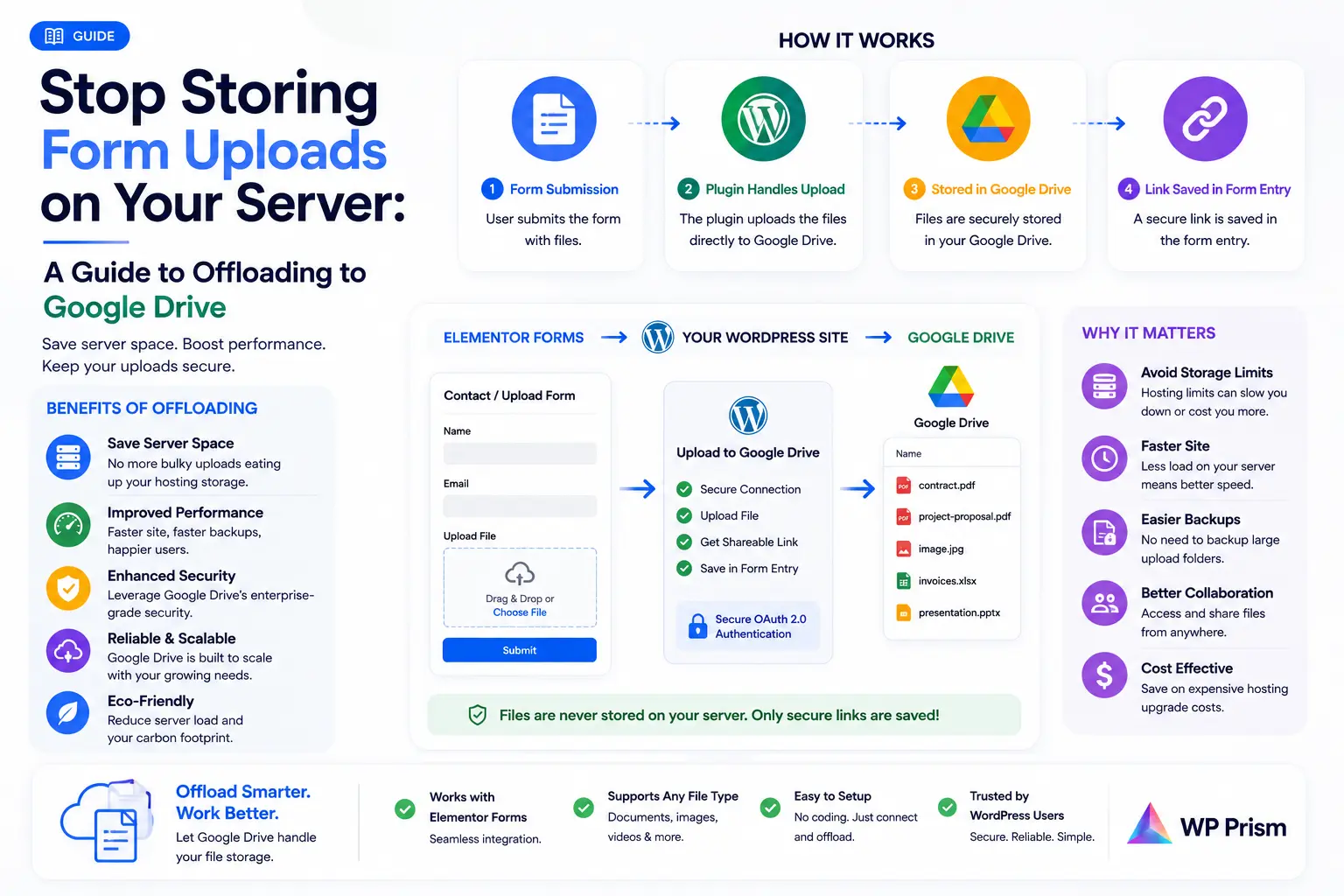
Every time someone submits a file through an Elementor form on your WordPress site, that file lands in your wp-content/uploads directory. It sits there, taking up server space, until someone manually cleans it out or your hosting plan quietly starts charging more for storage.
That’s the default behavior, and for a contact form collecting an occasional PDF it’s harmless enough. But for any site running forms that collect files regularly, client documents, job applications, property photos, signed agreements, the uploads folder becomes a liability: growing storage costs, no meaningful access control, and sensitive files sitting on a shared server environment indefinitely.
Offloading those uploads to Google Drive fixes all three problems at once. Here’s how to set it up properly.
Why the Default Setup Is a Problem
Let’s be specific about the risks so the fix makes sense.
No access control by default. Files in your WordPress uploads directory are served as static assets. A direct URL to an uploaded file is publicly accessible unless you’ve added specific server level rules to prevent it. Most WordPress sites haven’t. That means a contract or ID document uploaded through your form has a guessable (or discoverable) URL that anyone with the link can access.
Storage costs compound over time. Hosting plans charge for storage or throttle performance once you hit limits. An uploads directory that grows by hundreds of files a month will eventually create a billing or performance problem. Google Drive, by contrast, scales cheaply and your team likely already has a plan that covers it.
Backups get heavier. Most WordPress backup plugins include the uploads directory. As it grows, backup file sizes grow, backup times increase, and offsite backup storage costs rise with it. Keeping uploads out of wp-content means your backups stay lean and fast.
Files land somewhere nobody works. The people who need to act on uploaded documents aren’t logging into WordPress to find them. They’re in Google Drive. Routing files to Drive puts them where the work happens immediately, with no download and re-upload step in between.
How Offloading to Google Drive Works
Drive Upload for Elementor Forms connects your Elementor forms directly to Google Drive using Google’s own API via a Google Cloud project you own. When a visitor submits a form with a file attachment, the plugin uploads that file to your designated Drive folder immediately. No copy is retained on your server.
The connection is direct: your WordPress site to Google’s API to your Drive. No third party automation platform sits in between, which matters both for cost and for the data path that sensitive files travel.
Setting Up the Offload
Create a Google Cloud Project
The plugin connects to Drive through Google’s OAuth2 flow using credentials from a free Google Cloud project. This is a one time setup.
- Go to console.cloud.google.com and create a new project
- Enable the Google Drive API under APIs & Services → Library
- Go to APIs & Services → Credentials → Create Credentials → OAuth 2.0 Client ID
- Set the application type to Web application and add the redirect URI shown in the plugin settings
- Copy the Client ID and Client Secret
The whole process takes about 10 minutes and costs nothing. The Google Cloud free tier covers the API usage volume of any typical WordPress form.
Connect the Plugin
In your WordPress dashboard, go to the plugin settings page and paste in your Client ID and Client Secret. Click Authorize with Google, sign in with the Google account that has access to the Drive folder you want files routed to, and grant the requested permissions. The connection is confirmed and you’re ready to configure your forms.
Set Up Folder Routing on Your Form
In Elementor, open the form you want to configure. In the form’s settings, go to the Drive Upload tab and create a feed. Here you’ll set the destination folder, either a fixed Drive folder or a dynamic path.
Dynamic folder mapping is the feature that makes this genuinely useful at scale. Instead of all uploads landing in one flat folder, you can build a folder path that includes form field values. A few examples of what this looks like in practice:
- A client name field in the form routes each client’s files to their own named subfolder automatically
- A document type dropdown routes contracts to one folder and IDs to another
- A project reference field routes each project’s assets to a dedicated folder
The result is a Drive structure that stays organized without anyone having to manually sort files after the fact.
Remove the Local Copy
Depending on your plugin version and settings, you may be able to configure the plugin to delete the local file from wp-content/uploads after a successful Drive upload. Enable this if your goal is to keep uploads off your server entirely. Check that the Drive upload succeeded before relying on this setting in production.
What This Looks Like Day to Day
Once the setup is done, your workflow changes in a straightforward way. A client submits their documents through your form. The files land in the correct Google Drive folder within seconds. Your team gets a notification (via Elementor’s built in form notifications or a separate email alert), opens Drive, and the files are already there, organized and ready to work with.
No one logs into WordPress to find uploads. No one downloads files from a server and re-uploads them to Drive manually. No storage bill creeps up quietly over six months.
Who This Setup Makes the Most Sense For
Agencies collecting client briefs, brand assets, and revision files across multiple active projects simultaneously.
HR teams running job application forms where resumes and cover letters need to land in a shared folder the hiring team can access immediately.
Real estate businesses where clients upload property photos, signed agreements, and disclosure documents that need to be accessible to agents and coordinators in Drive.
Legal and financial service providers handling sensitive client documents where the fewer systems those files pass through, the better.
Freelancers and consultants who want client deliverables and intake documents organized in Drive automatically rather than scattered across email attachments and a WordPress uploads folder.
Frequently Asked Questions
Does the file still pass through my server at all? Briefly, during the upload process. The file is received by your WordPress server and immediately pushed to Google Drive. With the local copy deletion setting enabled, it is removed from your server after a successful upload.
What if the Drive upload fails? The plugin logs failed uploads. The local file is retained as a fallback in that case so nothing is lost. You can retry failed uploads from the plugin’s log or entry view.
Can I use this with multiple forms on the same site? Yes. Each Elementor form has its own Drive Upload feed with its own folder routing configuration.
Do I need Google Workspace or does a free Google account work? A personal Google account with Google Drive works for this integration. Google Workspace adds shared drives and team folder management features that are useful for larger teams, but are not required for the plugin to function.
Is there a file size limit? The limit is determined by your Elementor form’s upload field settings and your server’s PHP upload limits, not by the plugin itself. Google Drive’s individual file size limit is 5TB, which is not a realistic constraint for form uploads.
Ready to get form uploads off your server and into Google Drive automatically? Get Drive Upload for Elementor Forms and have your first form routing to Drive today.