
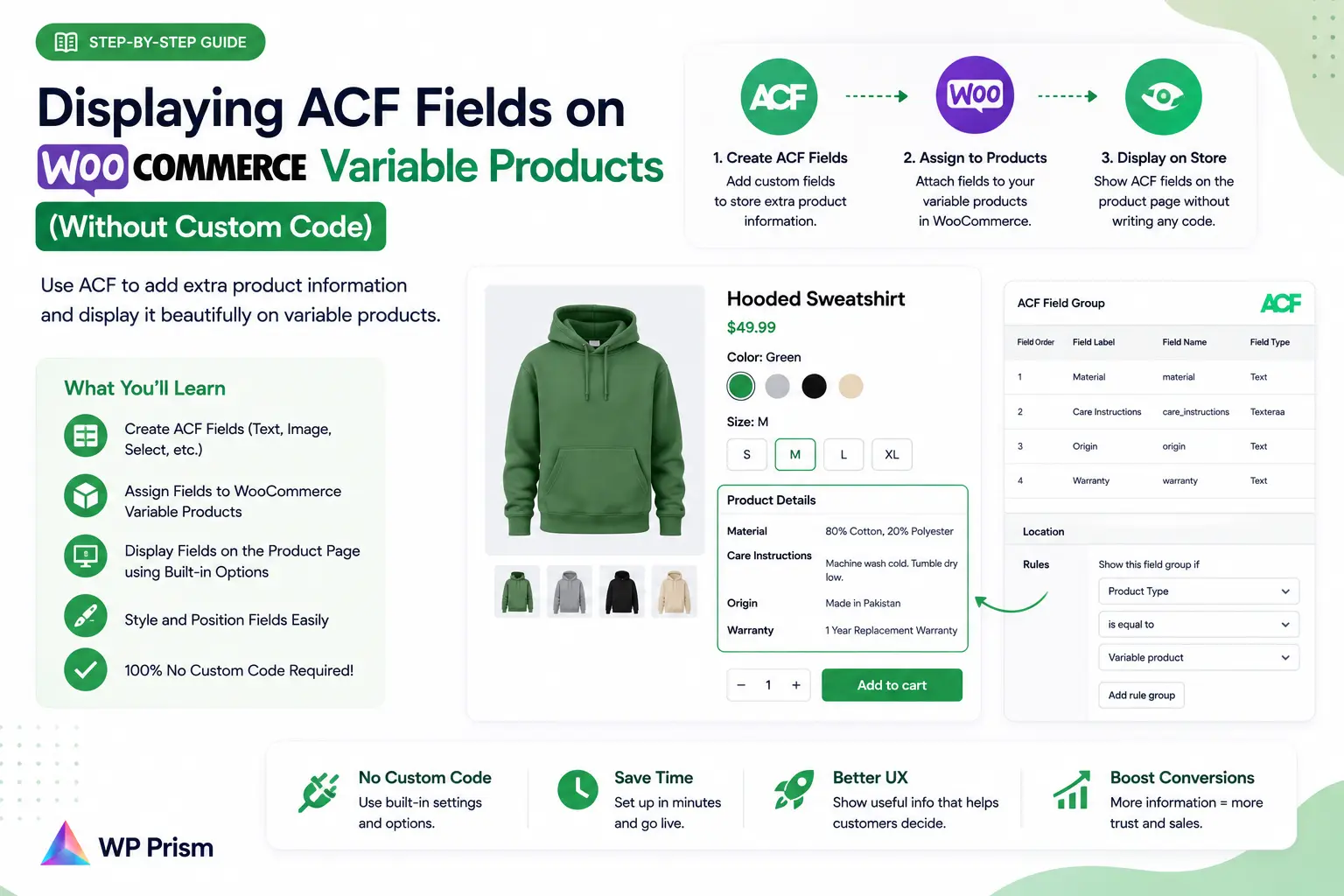
If you’ve ever tried attaching ACF fields to WooCommerce variable products, you know exactly where the frustration kicks in. The fields show up fine in the product edit screen. You add values per variation. You display the field on the frontend using the_field(). And then a customer picks a different size or color from the variation dropdown, and the field value on screen stays frozen on whatever it was when the page first loaded.
That’s the gap. WooCommerce’s variation switching updates price, stock status, and the product image via AJAX. It has no awareness of ACF fields sitting outside that update cycle. Bridging the two without custom code is exactly what the ACF Addon for WooCommerce Variations does.
Here’s the full setup from field group to frontend, no JavaScript required.
What You’ll Need
- WooCommerce with at least one variable product set up
- Advanced Custom Fields (free or Pro)
- The ACF Addon for WooCommerce Variations installed and activated
Step 1: Create Your ACF Field Group for Variations
In your WordPress dashboard, go to Custom Fields → Add New to create a new field group.
Add whatever fields you need. Common variation specific fields include:
- A text or textarea field for technical specifications that differ per size or material
- An image field for a variation specific detail photo (different from the main variation image)
- A number field for a weight or dimension that changes per variant
- A file field for a variation specific spec sheet or care guide PDF
Give the field group a clear name like “Product Variation Details” so it’s easy to identify later.
For the Location Rules, set the field group to display on: Product Variation (not Product, which would attach it to the parent product rather than each individual variation).
If you don’t see “Product Variation” as a location option, make sure both WooCommerce and ACF are active. The option appears once both plugins are running.
Save the field group.
Step 2: Add Field Values Per Variation
Go to any variable product in your WooCommerce catalog. Under Product Data → Variations, expand each variation. You should now see your ACF field group appearing inside each variation panel.
Fill in the field values for each variation. For example, if you have a text field called “Material Details,” each size or color variant can have its own unique value in that field.
If you have a large number of variations, this is the most time consuming part of the setup. For products with many variants, consider whether you need fields on every variation or just the ones where the data meaningfully differs.
Save the product when done.
Step 3: Configure the Addon
The ACF Addon for WooCommerce Variations handles the frontend update cycle that connects variation switching to ACF field display. In the plugin settings, you’ll specify which field group or fields should be included in the variation switch event.
This tells the addon: when a customer selects a different variation, fetch that variation’s ACF field values and update the displayed content on the page to match.
Check the plugin’s settings page for the specific configuration options in your installed version. Generally you’ll be selecting the field group you created in Step 1 and enabling it for frontend output.
Step 4: Display the Fields on Your Product Page
The addon handles the dynamic update behavior, but you still need to tell WordPress where on the product page to display the field values. There are two ways to do this depending on your setup:
If you’re using a block based theme or Gutenberg product templates: use the addon’s block or shortcode to place the field output in your product template. The addon outputs the correct value for whichever variation is currently selected.
If you’re using a classic theme or Elementor: use the addon’s shortcode in a custom tab, a product short description, or an Elementor widget. The shortcode renders the field value for the active variation and updates it when the selection changes.
The exact shortcode syntax is in the plugin documentation. It will look something like [acf_variation_field field="your_field_name"], referencing the field name you defined in ACF.
Step 5: Test on the Frontend
Visit the product page as a customer would. Select each variation from the dropdown and watch the ACF field output on screen. It should update to reflect that variation’s field value within a moment of the selection changing, the same way the price and stock status update.
Test a few edge cases:
- A variation where you left the ACF field empty. It should display nothing rather than showing a previous variation’s value or an error.
- Switching back and forth between variants rapidly. The displayed value should always match the currently selected variation.
- On mobile, where variation switching behavior can differ slightly from desktop.
Practical Use Cases
Apparel stores. Each size variant carries its own fit notes, fabric weight, or care instructions displayed below the variation selector.
Electronics or hardware. Each variant shows its own technical specifications, compatible accessories, or download links for version specific documentation.
Food or supplement products. Each flavor or size variant shows its own ingredient list or nutritional information that updates as the customer browses options.
Furniture or home goods. Each finish or size variant shows its own lead time, dimensions, or material sourcing information without the customer needing to navigate to a separate product page.
Frequently Asked Questions
Does this work with ACF Free or only ACF Pro? It works with ACF Free for standard field types like text, textarea, number, image, and file. ACF Pro field types like Repeater or Flexible Content may have different behavior depending on the addon version. Check the plugin documentation for your specific field types.
Will this slow down my product pages? The addon fetches variation field values as part of WooCommerce’s existing variation switch event, so there’s no additional page load. The impact on page speed is minimal.
What happens if I add new variations to a product later? Go back to the product edit screen, expand the new variation panel, and fill in the ACF field values for the new variant. The addon will include it in the frontend update cycle automatically.
Does this work with AJAX add to cart? Yes. The field update behavior is tied to variation selection, not to the add to cart action, so it works regardless of how your cart is configured.
Can I display multiple ACF fields per variation? Yes. Add as many fields as you need to the field group. Each one can be displayed separately using its own shortcode or block instance on the product page.
Stop writing custom JavaScript to make ACF fields update on variation switch. Get the ACF Addon for WooCommerce Variations and have it working in under 30 minutes.