
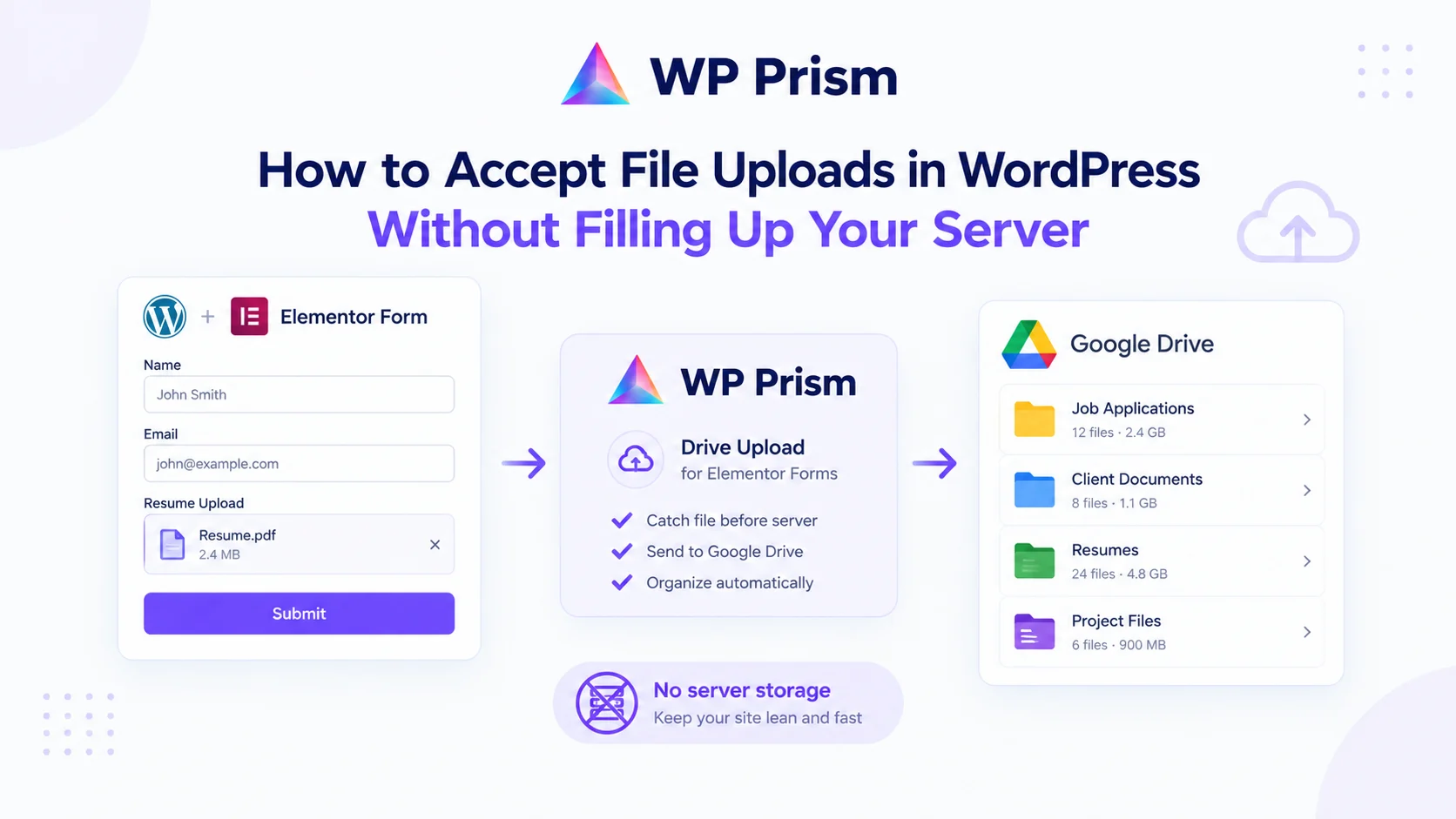
If your WordPress site collects files through forms, those files are sitting somewhere. By default, that somewhere is your server. Every CV from a job application, every brief from a new client inquiry, every signed document from an onboarding form adds to the pile. Your hosting storage ticks up steadily. Finding a specific file means logging into your host’s file manager or FTP and digging through a folder structure that makes no sense. Sharing a file with a colleague means downloading it first and then sending it separately.
This is the file upload problem that most WordPress site owners hit eventually. The fix is straightforward: stop sending files to the server in the first place and route them directly to Google Drive at submission.
Why Server Storage Is the Wrong Place for Form Uploads
WordPress stores uploaded files in the wp-content/uploads directory. That works well for media you are actively using on the site: images, PDFs you are linking to, downloadable files. It is not designed as a document inbox for ongoing form submissions.
The problems compound over time:
Storage costs scale with form volume. A site collecting a dozen CVs a week will hit storage limits that trigger upgrade prompts within months. Hosting upgrades are often a step jump in price, and you are paying for storage you need only because of form submissions, not because your site itself requires it.
Files are disorganized by default. WordPress uploads are organized by year and month, not by form, submission type, or any other logic that reflects what the files actually are. Finding a specific CV from three months ago means hunting through a 2026/07 folder with no searchable metadata.
Files are not accessible to your team. Someone who needs access to submitted files either needs WordPress admin access to your site, or you need to manually download and redistribute files. Neither is a reasonable ongoing workflow for a growing business.
Backups get heavier. If your hosting backup includes wp-content/uploads, every backup now includes all your form submissions. Backup time increases, backup storage increases, and restoring becomes slower.
The Better Approach: Route Files to Google Drive at Submission
Drive Upload for Elementor Forms removes server storage from the equation entirely. When someone submits a form that includes a file upload field, the plugin catches that file before it lands on your server and sends it directly to a specified Google Drive folder. The form submitter’s experience is identical, they see the same file upload field and the same submission confirmation. What changes is the destination.
The file goes to Google Drive. Your server stays clean.
What You Can Do With Drive-Based Uploads That You Cannot Do With Server Storage
Automatic folder organization. Drive Upload lets you set the destination folder dynamically based on form field values. A job application form can route each submission to a sub-folder named after the role applied for. A client intake form can create a folder per client name. A real estate form can organize by property address. The files arrive already sorted, no manual filing required.
Immediate team access. Google Drive is where your team already works. Files submitted through a form are available to anyone with Drive access the moment the form is submitted. No downloading, no forwarding, no FTP.
Google Drive’s search and preview. Every file in Drive is searchable by name, content (for text documents), and date. Previewing a CV or a brief does not require downloading it. Commenting and annotating are built in.
Share with clients. If a project requires sharing submitted files with external parties, Google Drive’s sharing controls handle that cleanly. You share a folder link, not individual file downloads.
No server storage costs. Google Drive storage is separate from your hosting. Most businesses have Google Workspace already, which comes with pooled storage. Even standalone Google Drive plans are cheaper per GB than expanding hosting storage.
Setting It Up
What You Need
- An Elementor Pro license (Drive Upload works with Elementor Forms, which requires Pro)
- A Google Cloud project with the Drive API enabled
- Drive Upload for Elementor Forms installed and connected
Creating the Google Cloud Project
- Go to console.cloud.google.com and create a new project, name it something like “WP Drive Upload”
- In the left menu, go to APIs & Services → Library and search for “Google Drive API,” then enable it
- Go to APIs & Services → Credentials, click Create Credentials, and select OAuth 2.0 Client IDs
- Set the application type to Web application, name it, and add your WordPress site URL as an authorized redirect URI
- Download the credentials JSON or copy the Client ID and Client Secret
Connecting Drive Upload
In your WordPress dashboard, go to Elementor → Drive Upload Settings and paste in your Google Client ID and Client Secret. Click the Connect to Google Drive button and authorize access through Google’s OAuth screen. Once connected, the plugin shows your Drive account is active.
Configuring Your Form
Open the Elementor form you want to add file upload to (or create a new one). Add a File Upload field to the form. In the field settings, you will see a Drive Upload section where you set:
- Destination folder: the Google Drive folder where files from this form should land. Paste the folder URL or ID from Google Drive.
- Dynamic sub-folder (optional): set a form field, like “Job Title” or “Client Name,” as the sub-folder name so each submission creates its own organized folder automatically.
- File naming: optionally rename uploaded files using form field values, such as
{field:name}-{field:date}, so files arrive with meaningful names instead of the original upload filename.
Save the form. Test with a real submission and confirm the file appears in the correct Drive folder.
Use Cases That Work Especially Well
Job applications. Route CVs and cover letters to Drive sub-folders named by role. Everyone involved in hiring sees submissions in real time, organized by position.
Client onboarding. New clients submitting briefs, signed agreements, or brand assets land directly in their client folder in Drive. No admin step required to get files where they belong.
Event registrations with supporting documents. Speakers submitting bios and headshots, exhibitors submitting booth graphics, sponsors submitting logos all land in the right place automatically.
Medical or legal forms with attachments. For practices or firms collecting documents through intake forms, Drive provides a more appropriate and accessible storage location than a web server’s uploads directory.
Contractor and vendor submissions. Invoices, timesheets, and deliverables submitted through a form route to the right project folder in Drive automatically.
Frequently Asked Questions
Does the file ever touch my server? Drive Upload intercepts the file during the upload process and routes it to Google Drive before it is written to your server’s file system. Your server handles the form submission but does not retain the file.
What happens to the upload if Google Drive is temporarily unavailable? The plugin handles API errors gracefully. If the Drive connection fails at the moment of submission, the upload falls back to standard WordPress behavior. You can monitor for this in the form submission logs.
Can I use this with file types beyond PDFs and images? Yes. Drive Upload handles any file type that Elementor Forms accepts in the upload field. You set the allowed types in the form field settings.
Does this work with multiple Drive accounts? The plugin connects to one Google account per WordPress installation. If you need files routed to different Google accounts (different clients, for example), the simplest approach is a shared Drive folder that multiple accounts have access to, or separate WordPress installations per client.
Can I still email the file to myself as well as saving it to Drive? Yes. Elementor’s form notification emails and Drive Upload run independently. You can configure a notification email that includes the submission details, and Drive Upload handles the file routing separately. Both run on the same form submission.
Stop filling your server with form uploads. Get Drive Upload for Elementor Forms and route every submission directly to Google Drive from the moment the form is submitted.